Edit Profile & Reset Password
This guide shows you how to update your name, email, and password from the My Profile page — and how to reset a forgotten password.
Edit Your Profile
Your profile page shows your avatar, name, email, and a summary of your courses, groups, and certificates.
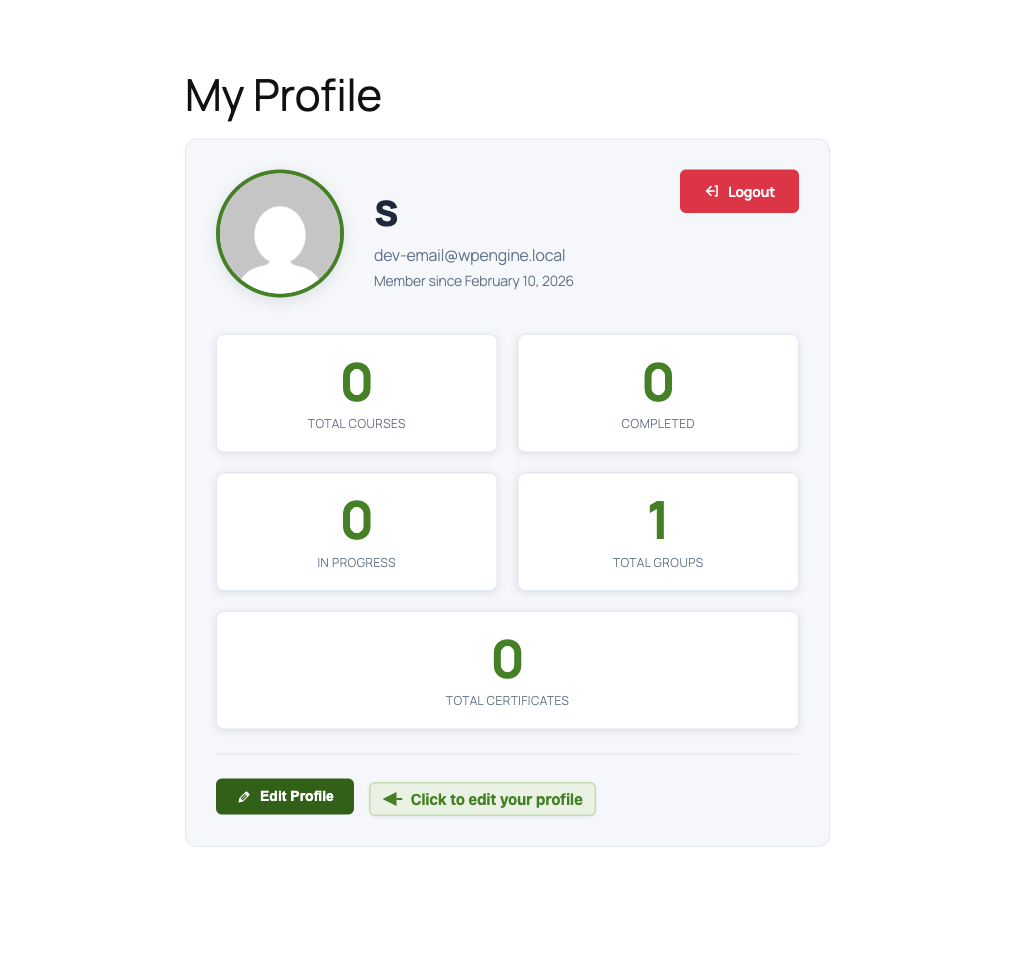
To update your personal information:
- Navigate to your My Profile page
- Click the Edit Profile button below your profile header
- Under Personal Information, update your First Name, Last Name, or Email Address
- Click Save Changes
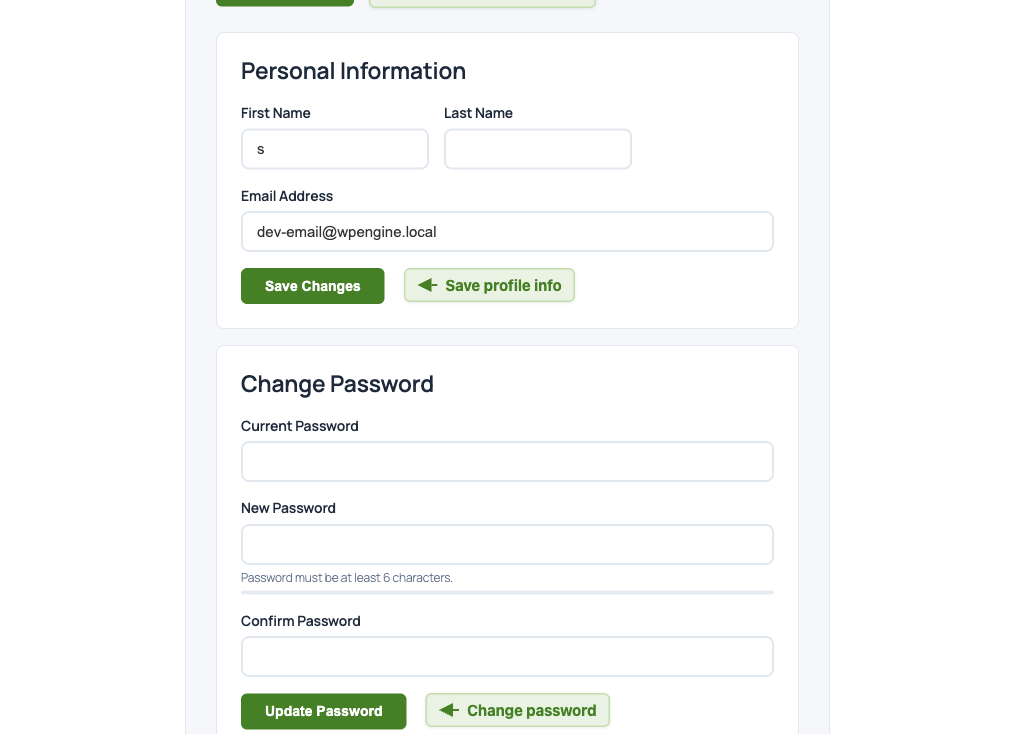
A success message confirms the update. Your display name and email update immediately across the site.
Your email address must be unique — if another account already uses that email, you'll see an error message.
Change Your Password
While logged in, you can change your password directly from the profile page:
- Click Edit Profile to expand the editor (if not already open)
- Scroll to the Change Password section
- Enter your Current Password
- Enter a New Password (minimum 6 characters)
- Enter the same password in Confirm Password
- Click Update Password
You'll stay logged in after changing your password — no need to sign in again.
If you don't remember your current password, use the Reset Password flow below instead.
Reset a Forgotten Password
If you've forgotten your password and can't log in:
- Go to the login page and click the Forgot your password? link
- Enter your Email Address on the Reset Password page
- Click Send Reset Link
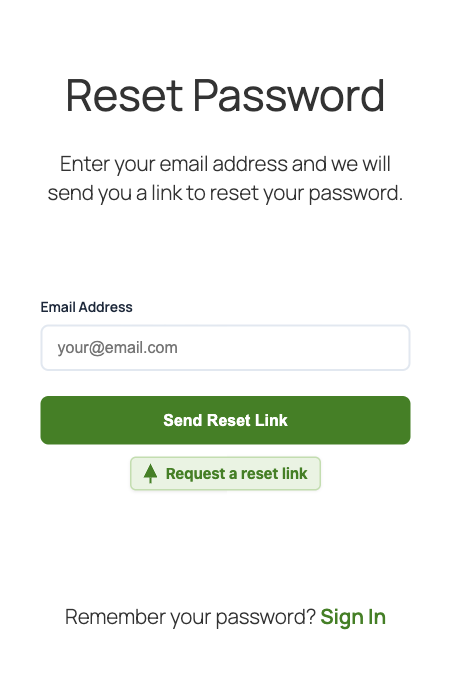
- Check your inbox for an email with a reset link
- Click the link in the email — it opens the Set New Password page
- Enter and confirm your New Password, then click Reset Password
After resetting, you'll be redirected to the login page where you can sign in with your new password.
Reset links expire after a short time. If the link no longer works, request a new one from the Reset Password page.
What's Next
- User Roles — understand the different roles in MentorKit LMS