Feedback
Feedback controls what the learner sees after submitting an answer. It can include visual indicators, such as colours and optional text explaining the result.
How feedback works
After a learner submits an answer:
- Correct answers are highlighted in green
- Incorrect answers are highlighted in red
This visual feedback is shown by default.
Additional feedback text can be shown depending on your settings.
Feedback text
You can define text feedback for:
- Correct answers
- Incorrect answers
This text is shown based on the selected display settings. The Feedback text can be edited through the text editor in the properties menu.
Display options
Choose when feedback text is shown:
- Always Feedback text is shown after every submission.
- Only if correct Feedback text is shown only when the learner answers correctly.
- Only if wrong Feedback text is shown only when the learner answers incorrectly.
- Never
No feedback text is shown.
The default setting for text feedback is Never.
Visual feedback
Visual feedback is shown after submission and can be used separate from text feedback. The default display colours for exercises are:
- Correct answers are marked in green
- Incorrect answers are marked in red
This helps the learner understand the result immediately.
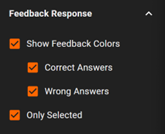
Feedback response
By default, all feedback options are enabled when you create a new exercise. Feedback colours control how answers are visually marked after submission. These settings work independently of feedback text.
Feedback colours
Show feedback colours
Enables or disables visual feedback.
- When enabled, answers are highlighted after submission
- When disabled, no colour indicators are shown.
- This will also disable the “Only Selected” option.
Correct answers
Highlights the correct answers.
- When enabled, correct answers are shown in green
- When disabled, correct answers are not highlighted
Wrong answers
Highlights the incorrect answers.
- When enabled, incorrect answers are shown in red
- When disabled, incorrect answers are not highlighted
Only selected
Limits visual feedback to the learner’s selection.
- When enabled, only the selected answers are highlighted
- When disabled, all correct and incorrect answers will be shown
Examples The examples below show how each setting affects what is displayed after submission.
 |  |  |
When to use feedback
- Use feedback text to explain why an answer is correct or incorrect
- Keep feedback short and focused
- Avoid repeating the question in the feedback