The Text Editor

Use the text editor to add and format written content in your course.
It supports basic styling, structure, and media so you can build clear and readable pages.
Edit
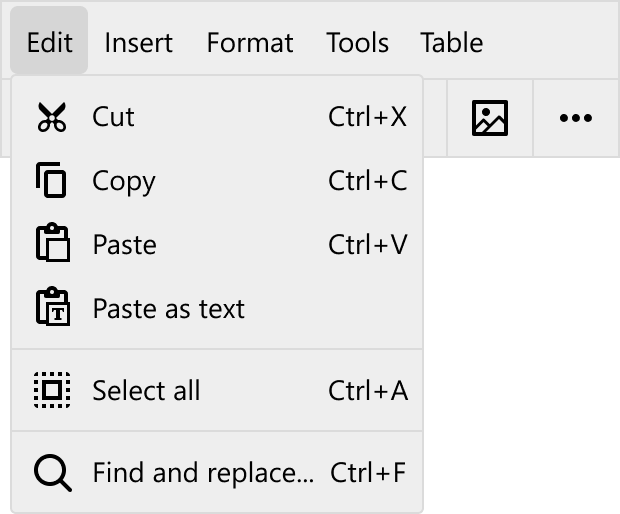
- Edit
- Use the Edit menu to manage and modify text within the editor.
- Cut
- Removes the selected text and places it on the clipboard.
- Copy
- Copies the selected text to the clipboard without removing it.
- Paste
- Inserts content from the clipboard into the editor.
- Paste as text
- Inserts clipboard content without formatting. This removes styles such as font size, colour, and links.
- Select all
- Selects all text within the current container.
- Find and replace
- Search for specific text within the container and replace it with new content.
Text or objects copied from Word, Power Point and Excel will keep their formatting when pasted into the text editor. Figures will be transformed into a picture, and a copy will be added to the media library.
Insert
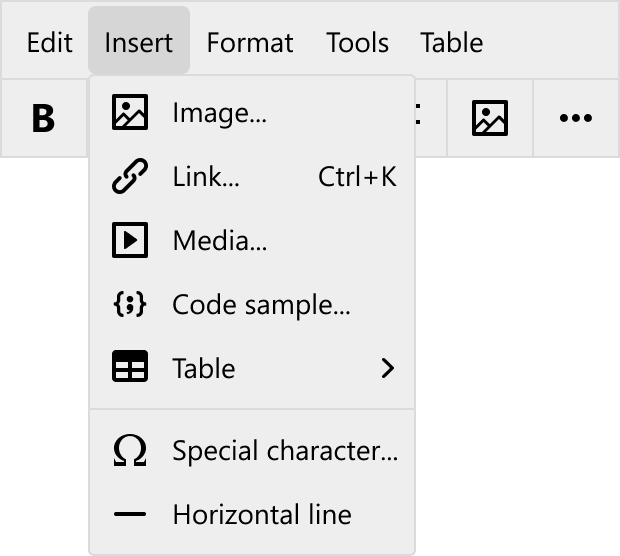
- Insert
- Use the Insert menu to add media, links, and structured elements to your content.
- Image
- Opens a window where you can select and insert an image into the editor.
- Link
- Opens a window to create a link. You can define the URL, the text to display, add a title, and choose whether the link opens in the current or a new window.
- Media
- Opens a window where you can select and insert media content.
- Code sample
- Opens a window where you can enter code and select the language from a dropdown. The code is displayed with formatting based on the selected language.
- Table
- Opens a grid where you can select the number of rows and columns by dragging the cursor.
- Special character
- Opens a window with a list of special characters. You can browse or search by name to insert a specific character.
- Horizontal line
- Inserts a horizontal line to separate content within the editor.
Format
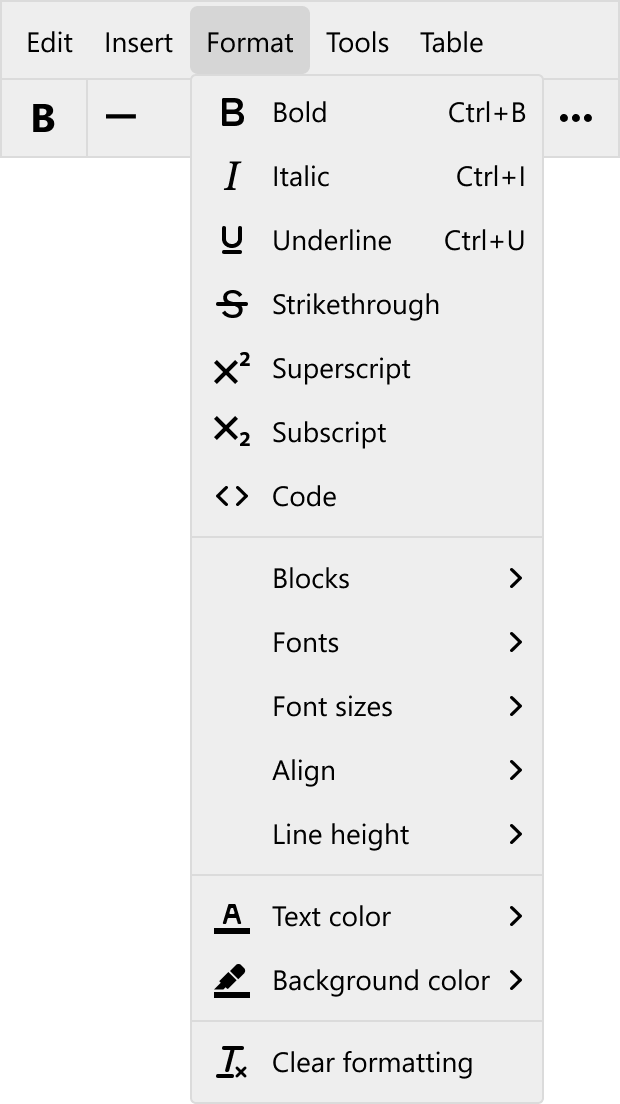
- Format
- Use the Format menu to style and structure text within the editor. Formatting is applied to selected text.
- Bold
- Applies bold formatting to the selected text.
- Italic
- Applies italic formatting to the selected text.
- Underline
- Underlines the selected text.
- Strikethrough
- Adds a line through the selected text.
- Superscript
- Displays the selected text slightly above the normal line, often used for references or exponents.
- Subscript
- Displays the selected text slightly below the normal line, often used in formulas or annotations.
- Code
- Formats the selected text as inline code.
- Blocks
- Applies predefined block styles to the selected text, such as headings or paragraph types.
- Fonts
- Changes the font family of the selected text.
- Font sizes
- Adjusts the size of the selected text.
- Align
- Controls how text is aligned within the container (for example: left, center, or right).
- Line height
- Adjusts the vertical spacing between lines of text.
- Text color
- Changes the colour of the selected text.
- Background colour
- Applies a background colour behind the selected text.
- Clear formatting
- Removes all formatting from the selected text and resets it to default styling.
Tools
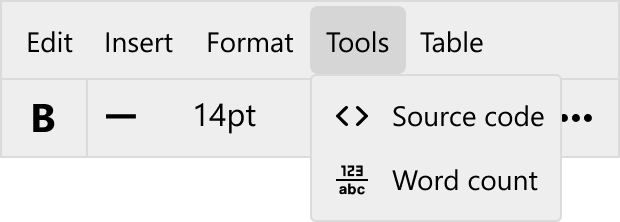
- Tools
- Use the Tools menu to access technical and informational features.
- Source code
- Displays the underlying HTML for the content in the editor. This allows you to view and edit formatting directly in code.
- Word count
- Shows statistics for the current text, including word c count, character count, and characters without spaces.
Table
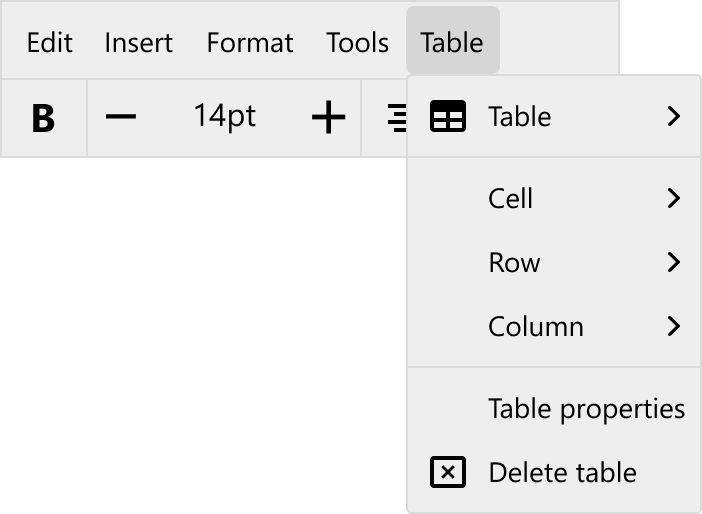
Use the Table menu to create and manage tables within the editor.
-
Table
- Create a table by selecting the number of rows and columns from a grid.
-
Cell
- Manage individual cells within a table.
- Cell properties
- Configure settings for the selected cell.
- Merge cells
- Combine multiple selected cells into one.
- Split cell
- Split a merged cell back into individual cells.
- Cell properties
- Manage individual cells within a table.
-
Row
- Manage rows within a table.
- Insert row before
- Adds a new row above the selected row.
- Insert row after
- Adds a new row below the selected row.
- Delete row
- Removes the selected row.
- Row properties
- Configure settings for the selected row.
- Cut row
- Removes the row and places it on the clipboard.
- Copy row
- Copies the row to the clipboard.
- Paste row before
- Inserts a copied row above the selected row.
- Paste row after
- Inserts a copied row below the selected row.
- Insert row before
- Manage rows within a table.
-
Column
- Manage columns within a table.
- Insert column before
- Adds a new column to the left of the selected column.
- Insert column after
- Adds a new column to the right of the selected column.
- Delete column
- Removes the selected column.
- Cut column
- Removes the column and places it on the clipboard.
- Copy column
- Copies the column to the clipboard.
- Paste column before
- Inserts a copied column to the left of the selected column.
- Paste column after
- Inserts a copied column to the right of the selected column.
- Insert column before
- Manage columns within a table.
-
Table properties
- Configure settings for the entire table.
-
Delete table
- Deletes the table from the text container.
Quick access toolbar

Toolbar
The toolbar provides quick access to commonly used formatting and insert options. These actions match the options available in the menus above. All toolbar actions apply to selected text.
Text formatting
Apply common text styles directly from the toolbar.
- Bold
- Italic
- Underline
- Superscript
- Subscript
Font size
Adjust the size of the selected text using the size selector. Common sizes are available, with options to increase or decrease.
Alignment Set text alignment within the container.
- Left
- Center
- Right
- Justify
Insert image
Insert an image directly into the content.
More options
Opens additional formatting and insert tools, including:
- Bullet list
- Numbered list
- Text colour
- Blockquote
- Link