Pages
You can enhance the look and feel of a page by adding several configurable properties.
Page note
The page note lets you add descriptions, reminders, or instructions directly to the page. Notes are saved instantly, allowing you to keep context-sensitive information tied to the page you are editing.
Page notes are only visible to course editors and are never shown to course participants.
Background styling
Background settings are organized into three modules: Color, Gradient, and Image. You can start with a simple solid color and switch to more advanced options if needed.
Only one background type can be used at a time. Adding a new background will automatically remove any existing background.
Background color
When using a background color, you can adjust both the color and opacity to match your course design. By clicking the dropdown arrow, you can switch between HEX, RGB, HSL, and HSV color formats.
The eyedropper tool allows you to sample colors from anywhere on your screen, even outside the browser such as from text or images in applications like Word or PowerPoint.
Background gradient
Gradients provide a more advanced way to style your background. You can choose between linear and radial gradients and adjust the rotation to achieve the desired effect.
You may define your own two colors or select from a small preset gradient library.
Background image
Background images are a powerful way to enhance the visual appearance of a page. You can upload your own image from the Media Library or use Unsplash to find an image that fits your theme and style.
After adding an image, you must configure how it behaves using the settings below.
Background Size
Choose how the background image is displayed:
- Percentage – Sets a fixed image size that can repeat, ideal for patterns.
- Contain – Fits the entire image within the page without cropping.
- Cover – Fills the page, cropping if necessary.
Percentage
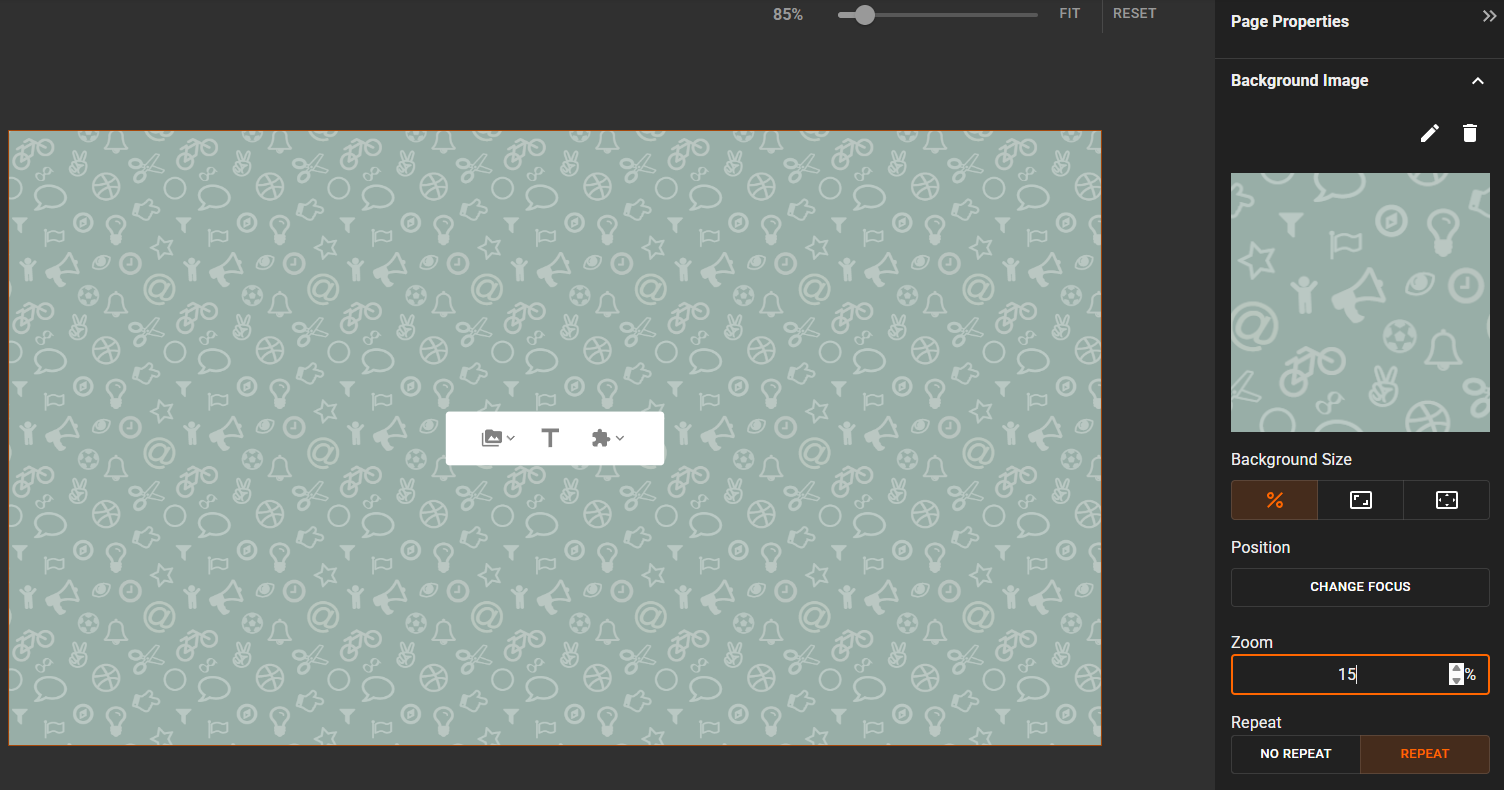
Percentage scales the image to a specific size relative to the page dimensions. When this option is selected, an additional setting appears allowing you to enable or disable image repetition.
This makes it ideal for seamless textures. For example, a simple image like this:

Can be turned into a repeating background by setting the zoom to 15% and enabling repeat:
Contain
Contain scales the image as large as possible without stretching or cropping it. If the page is larger than the image, you can enable repeat to tile the image and fill the entire page.
You can also control the image position by anchoring it to the left, center, or right, as well as top, center, or bottom, depending on available space.
Cover
Cover scales the image proportionally so that it completely fills the page without leaving empty space. If the page and image proportions differ, the image will be cropped either vertically or horizontally.
When using Cover, you can also select a focus point to control which part of the image remains visible at all times.
Audio
Background audio allows you to add ambient sound or narration to a single page. It can be used to set the mood, provide spoken guidance, or support accessibility.
For the best experience, keep audio subtle and avoid using it on pages with heavy reading.
You can upload MP3, WAV, OGG, or M4A audio files.