Write e-mail
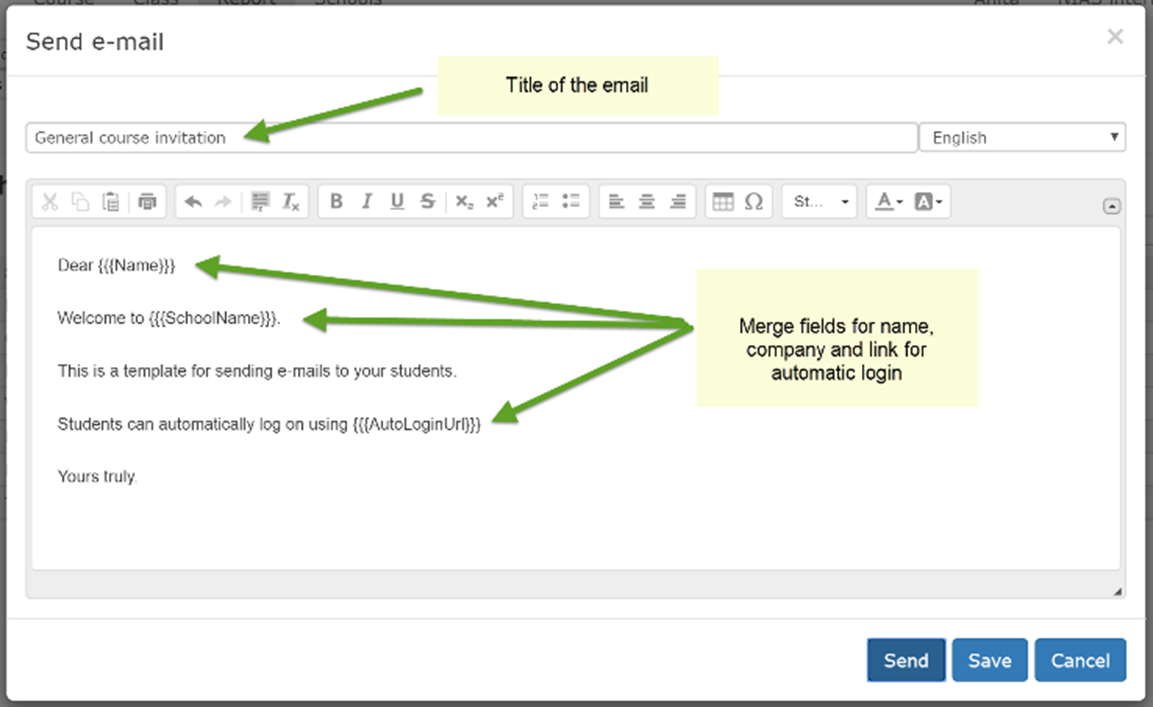
A word processor opens where you enter a text. You can format the text with the main features such as color, font and font size.
TIt is very advisable to test a broadcast on a few users BEFORE sending out a mass email!
In the title field you should include school or course name. The {{{Name}}} merge box displays the user's first name and {{{Schoolname}}} the name of the school / business in Mentorkit.
You can delete the merge fields if you wish, but do not change the contents of the parentheses. The automatic login link {{{AutoLoginUrl}}} leads directly to "My Page" where the courses are available. It makes it easy to invite: “Welcome to the course! Click Logon to access the course.” Then you're done. In addition, the users can log in with their username and password. “
The sender of the email will be noreply@mail.mentorkit.com.
Therefore, a sentence should be entered at the bottom stating that this email cannot be answered. Enter your own e-mail address if you want a response.
Click "Submit" and you will receive a confirmation.

See example on the right.
For security reasons, no emails will be sent to users who have rights to use the administrator system. If so, a notice will be given. See example on the right. Click "Submit" and you will receive a confirmation.
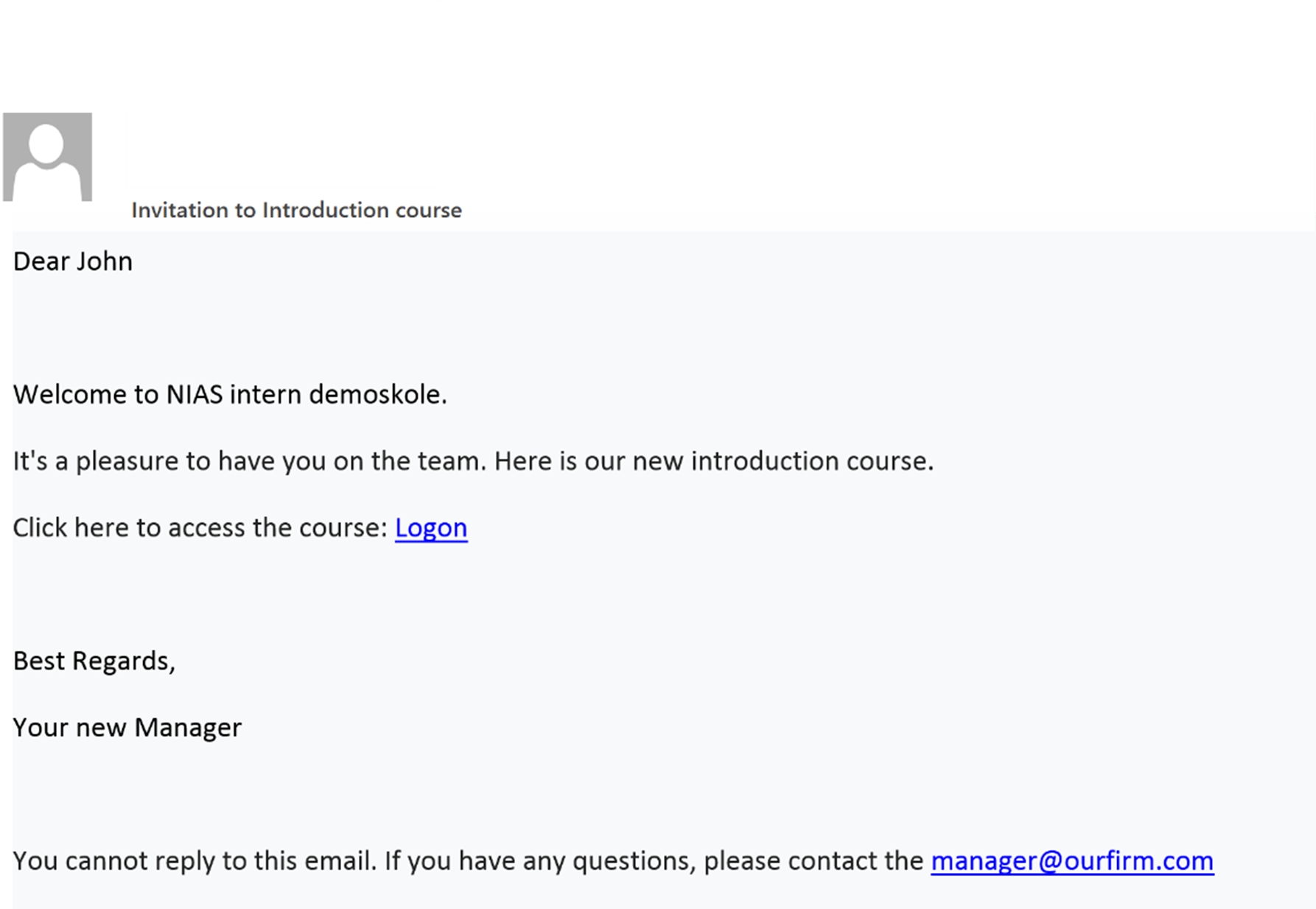
Here is an example of email received: