Description report types
S = School CL = Class CO = Course U = User
| Report Name | Description | ||||
|---|---|---|---|---|---|
| Alphabetical Class List (Email) | From this report you can send email invitations to users. | S | CL |

| Free text response | Description | S | CL | C | U |
|---|---|---|---|---|---|
If the course contains a typing field then the supervisor can write / correct / comment in the same typing field. This can be handy for dialogue with users.

| Course results | If the course is a random test then one should use the "Random test" report. | S | CL | C | U |
|---|---|---|---|---|---|

| New users registered at the school | Provides an overview of when the users were first registered. | S | |||
|---|---|---|---|---|---|

| Random test | Displays results from tests that contain "random test". Clicking on the test name in the first column gives you a more detailed report of the test. | S | CL | C | |
|---|---|---|---|---|---|
If a course contains one or more random tests then one must use this report to see if the test has passed. Click on the first column to get a detailed overview of the answers to the user. Time is the total time for all use of the test - including repeated attempts. It is possible to choose detailed view of results or just which tasks are incorrectly answered. In detailed view, you will know which options are selected in the various tasks.

| Results for each class (e-mail) | S | CL | |||
|---|---|---|---|---|---|
This report can also be used to send invitations or reminders about course completion. NB: This report does not give an overview of time in courses for courses that are allocated to users as a stand-alone course »

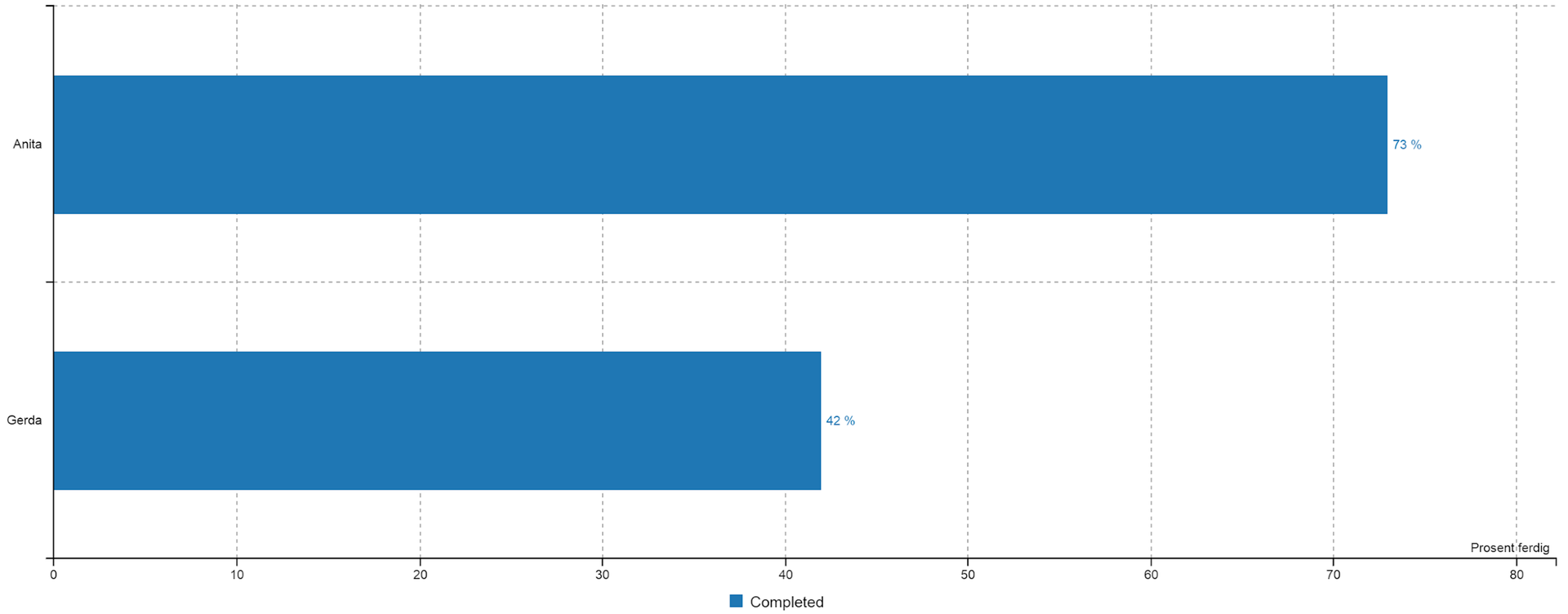
| Results for each class (graph) | Graphical version of class report. See also "Dashboard" | S | CL | ||
|---|---|---|---|---|---|
| Results for each course (e-mail) | S | C | U | ||
|---|---|---|---|---|---|
If the course is a "Random test" you should use the report "Random test". This report can also be used to send invitations or reminders about course completion.

| Time spend on course | Useful report to get an overview of the activity for a certain period of time. By sorting by class or course one can extract different information from the report. | S | CL | C | |
|---|---|---|---|---|---|
Selections in this report can be limited by date - from –to.

| Total time spent | This report provides an overview of "logged in" time. Will always show MORE time than what is registered in the use of the courses. | S | |||
|---|---|---|---|---|---|

| Total time required on class | Overview report to see the time consumption / activity for all classes / groups at the school. The report can be limited by date. Time consumption shows logged time, not necessarily time spent on courses. | S | CL | ||
|---|---|---|---|---|---|

| Yellow notes from user | You can enter comments on a "yellow note" on each screen. To view these comments, you can use the "Yellow note" report. You see who wrote the note and where in the course it is placed. | CL | C | U | |
|---|---|---|---|---|---|

| Logon time for each course | C | ||||
|---|---|---|---|---|---|

| Gallup poll | Little used report. Only used if the course contains a poll. | C | |||
|---|---|---|---|---|---|
| Text in course | Allows the author to print a "paper version" of the course. Requires author rights. | C |

| Visual courseprint | Displays the approximate layout of the current screen. Used by course authors. | C | |||
|---|---|---|---|---|---|
| Detailed course results - | U |

| Points overview detailed - answer options | U | ||||
|---|---|---|---|---|---|
| Results for each course (detailed) | Provides overview of execution with time entries per screen and chapter. | U |

| Total time and login for users | This report makes it easy to clean up the users who are not active anymore. | U | |||
|---|---|---|---|---|---|
