Interface in Admin
Different roles for users (coach, instructor, teacher, test leader, developer, admin etc.) give different rights and thus can show slightly different user interface. However, the principles are the same. There are several ways to perform a task in Admin, but this user guide only describes the main roads. You find the shortcuts yourself!
Get to know the menus!
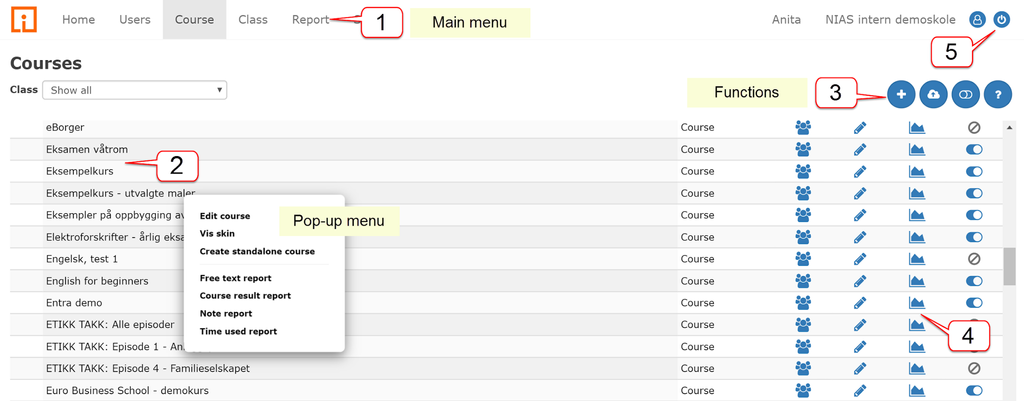
Administrator has access to all features. The interface is quite similar for other users. The higher the level of rights, the more functionality is available.
| 1 | The menu at the top is a main menu that is available all the time. Here you can access users, courses, classes, reports, and quit the system. |
| 2 | The pop-up menu appears when you click on an item (for example, a class). It provides different options related to the current tab. |
| 3 | The options in the symbol menu vary depending on the user, the course, the class, and the current page. |
| 4 | Some options are widely used and are therefore available in the table to the right. |
| 5 | To exit the management system, click the icon in the upper-right corner. |