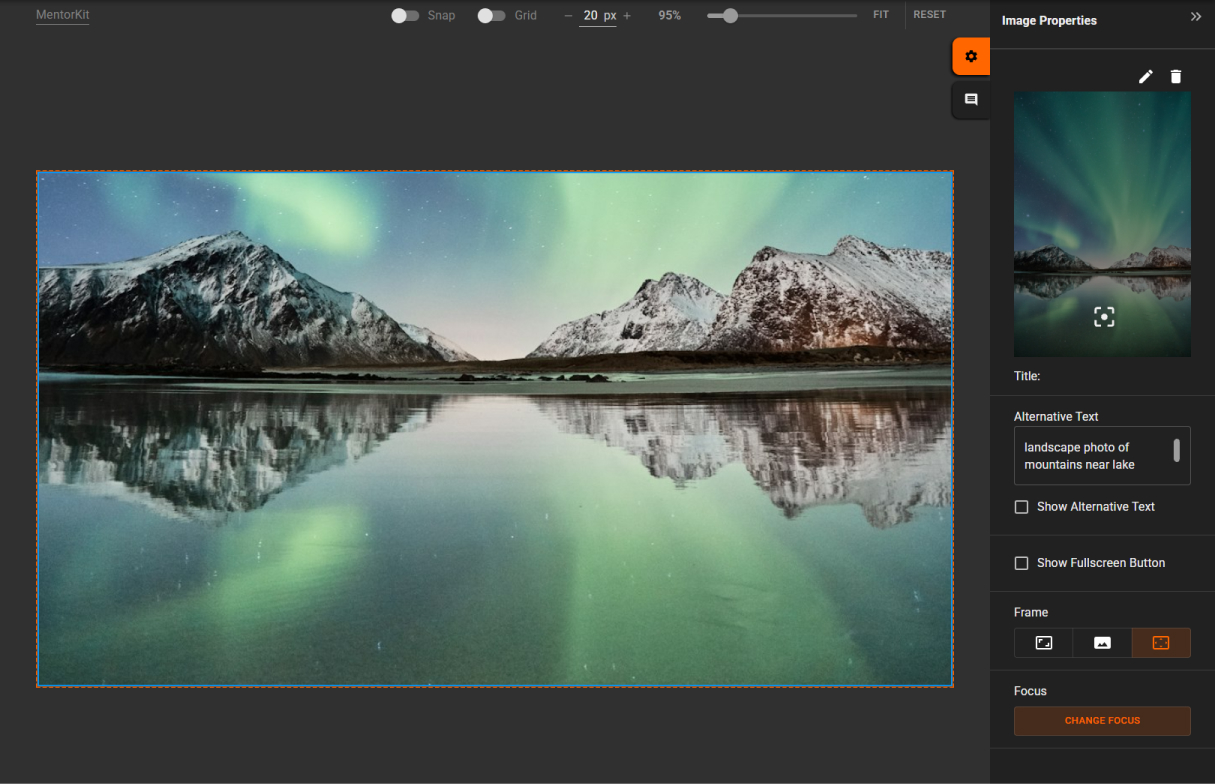
Image Settings
Selecting an image opens the Image Properties panel.
From here you can replace or edit the image, add alternative text, enable fullscreen viewing, and control how the image is displayed across different screen sizes.
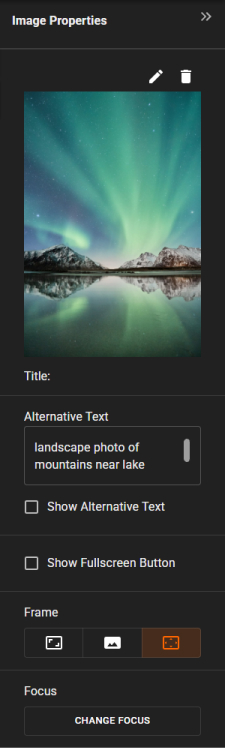
Image Properties
The top section of the Image Properties panel contains actions for replacing, editing, and removing the selected image.
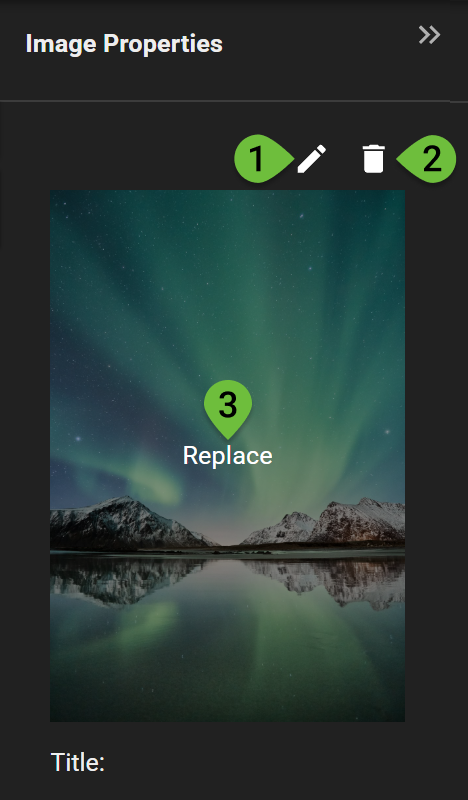
1. Edit image
Click the pen icon above the image in the Images Properties panel to open the Image Editor.
You can also right click the image inside the container and select Edit to open the Image Editor.
The Image Editor allows you to crop, resize, and adjust the image without leaving Course Creator.
2. Delete image
Click the trash can icon above the image in the Images Properties panel to delete the image.
Right click the image inside the container and select Delete to delete the image from the container.
Removing an image from a container does not delete the original file from the Media Library.
3. Replace
To replace the existing image, click the small preview image to choose a new image from the Media Library or Unsplash.
Alternative text
Alternative text provides a description of the image.
This can be used to improve accessibility and provide additional context for learners.
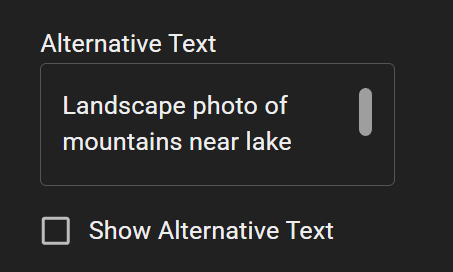
Enable Show Alternative Text to display the description on the page.
Fullscreen view
Enable Show Fullscreen Button to allow learners to open the image in fullscreen mode.

This can be useful for detailed graphics, diagrams, and illustrations on smaller screens.
Frame
The Frame setting controls how the image is displayed inside the container.
Choose between Cover, Fill, or Contain.

Choose the option that best suits your page layout and image content.
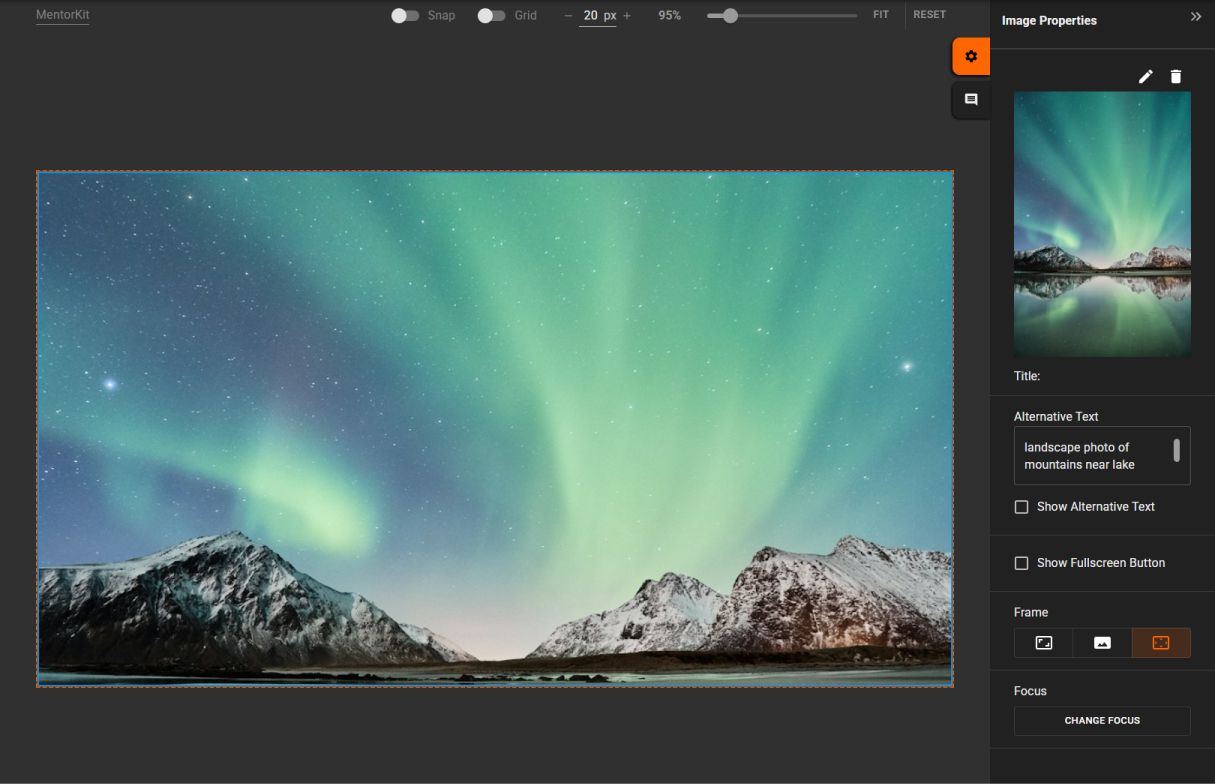
Cover
Fills the container by cropping the image without stretching it.
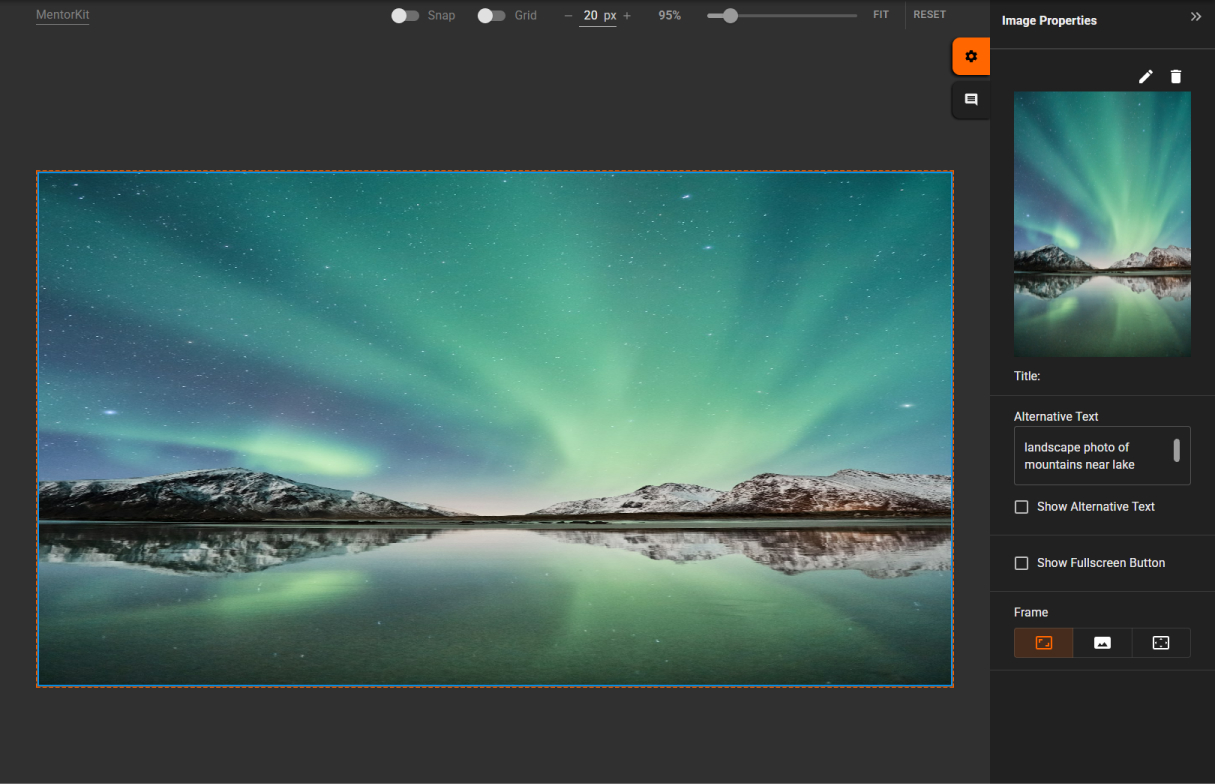
Fill
Display the entire image by stretching it to fit within the container.
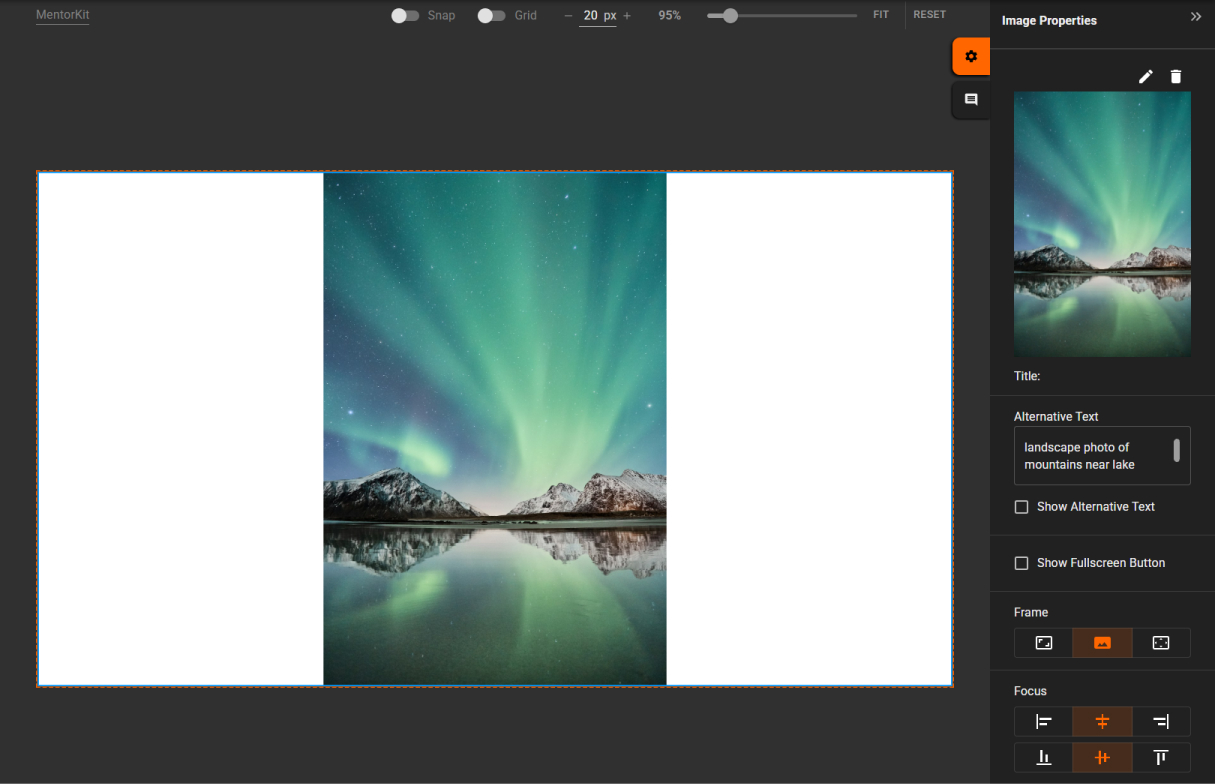
Contain
Fit the image inside the available space without distorting the original aspect ratio.
Focus
Use Change Focus to select the most important area of the image.
The focus point helps keep important parts of the image visible when the page is displayed on different screen sizes.