Course Dashboard
The Course Dashboard is the first screen displayed when opening Course Creator.
This is where you create new courses, access existing courses, and manage course settings.
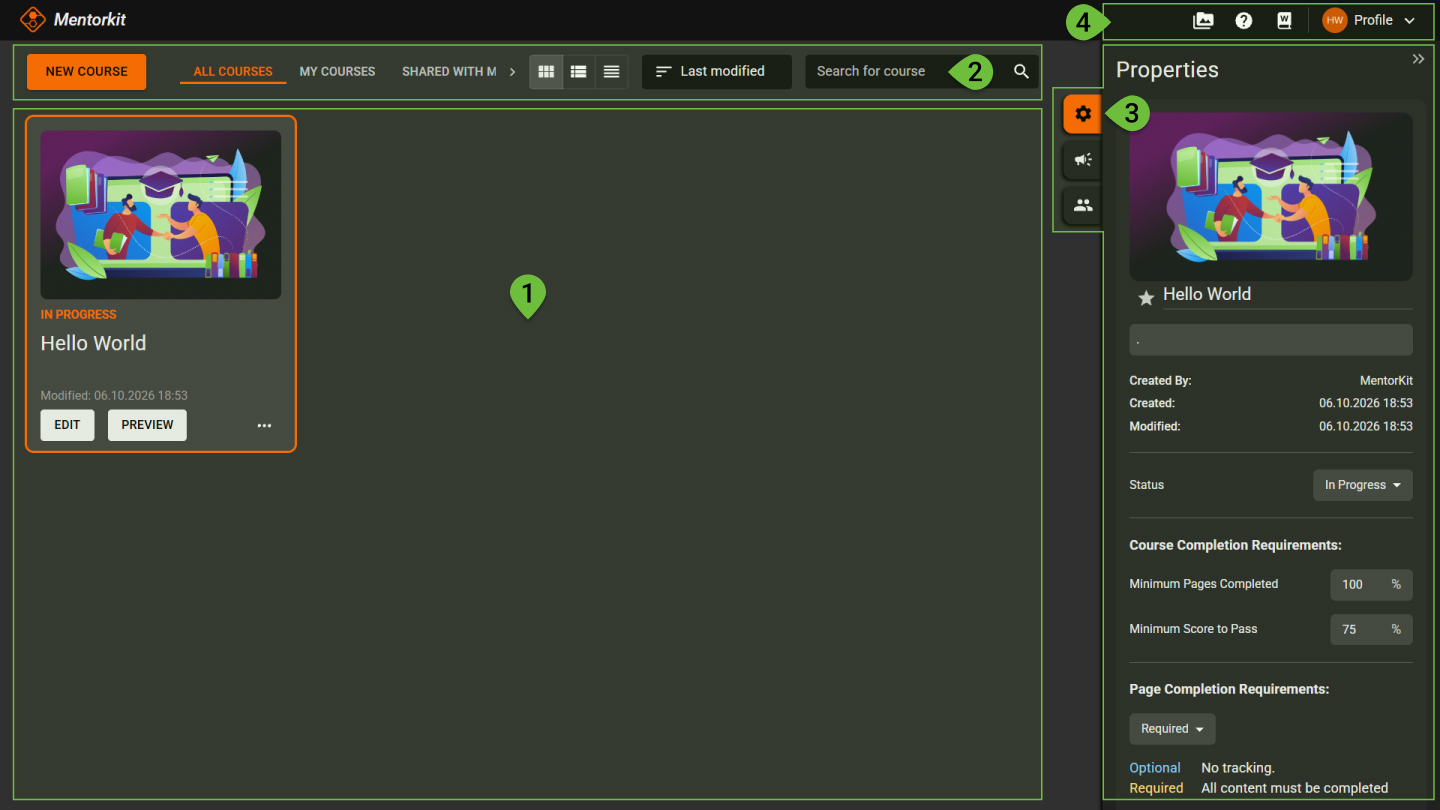
1. Course list
The centre area displays all courses available on your account.
From here you can:
- Open a course for editing
- Preview a course
- Duplicate a course
- Export a course
- Publish a course
- Share a course
- Delete a course
Use the search and sorting options to quickly find the course you are looking for.
2. Dashboard controls
New Course
Click New Course to create a new course.
You will be prompted to enter a course title and description before opening the course in the editor.
Course filters
Use the course filters to control which courses are shown.
- All Courses shows all courses available to you
- My Courses shows courses created or owned by you
- Shared With shows courses shared with you
View options
Change how courses are displayed in the dashboard.
You can switch between Grid, List, and Compact List.
Sort courses
Use the sorting dropdown to change the order of the course list.
For example, you can sort by Last modified.
Search
Use the search field to find a course by title.
3. Tabs
Course settings
When a course is selected, the Properties panel displays information and settings related to that course.
This includes course details, sharing options, and other course-specific settings.
News
The News panel displays product updates, announcements, and other information related to Course Creator.
Share courses
The Share Course panel allows you to share courses with other users.
Shared users can access the course according to the permissions you assign.
4. Top toolbar
The toolbar provides access to tools and account features available throughout Course Creator, including:
- Media Library
- Support
- Wiki
- User Profile