Two-Factor Authentication (2FA)
Learn how to set up two-factor authentication to protect your administrator account from unauthorized access.
Your site administrator must have installed and activated both the MentorKit Security plugin and the Two-Factor plugin. If these are active, you will be prompted to set up 2FA the next time you log in.
Why 2FA is required
When you log in as an administrator without 2FA configured, you'll see a notice at the top of your profile page:
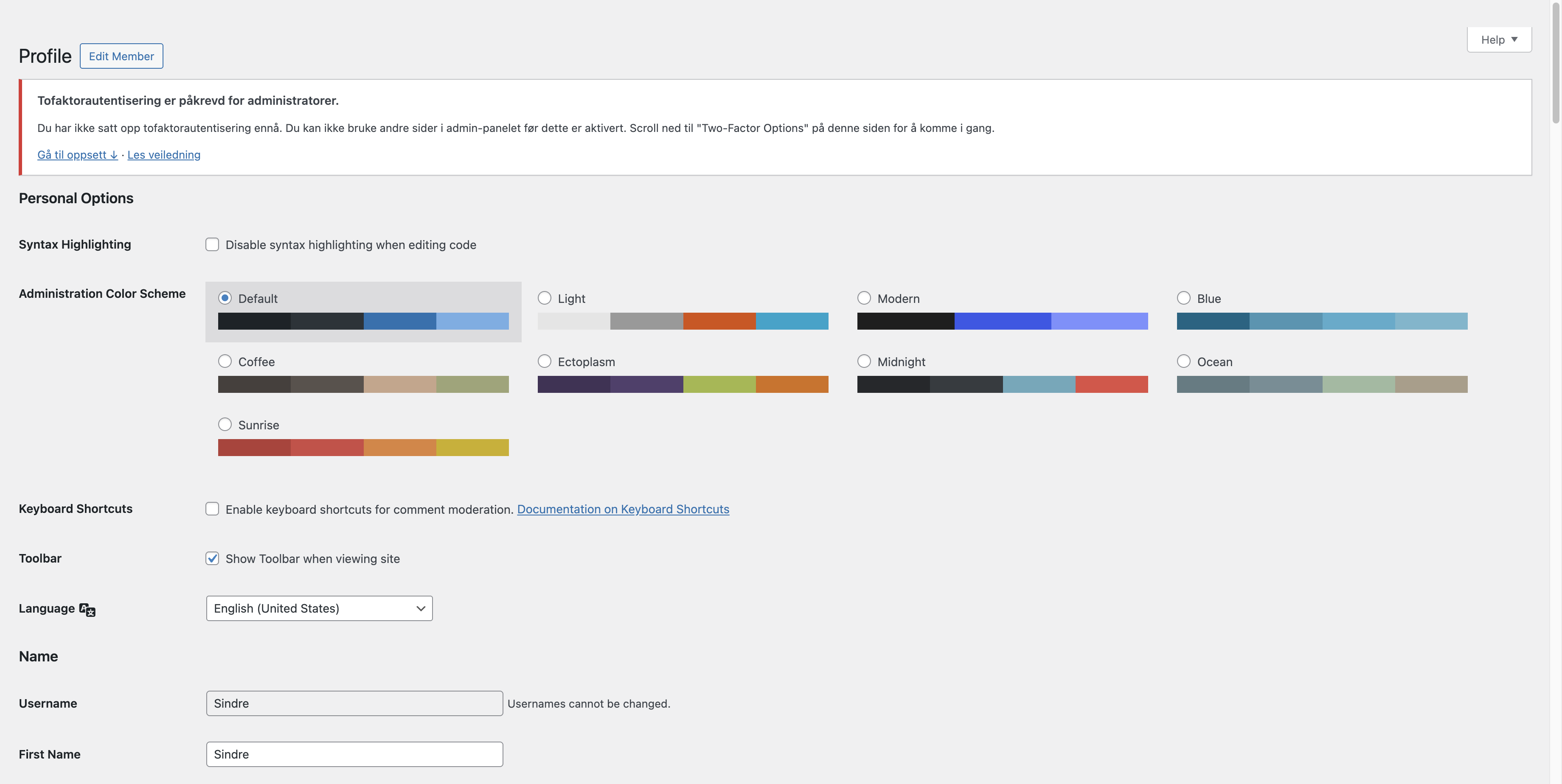
You won't be able to access other admin pages until 2FA is enabled.
A password alone is not enough to protect an administrator account. If your password is compromised through a data breach, phishing, or brute force attack, an attacker gains full access to your site.
Two-factor authentication adds a second verification step — a time-based code from your phone — that changes every 30 seconds. Even if someone knows your password, they cannot log in without your phone.
Setting up 2FA with an authenticator app
We recommend the authenticator app method. It takes under a minute to set up, works offline, and doesn't depend on email delivery. You simply scan a QR code and you're done.
If you already use 1Password, Microsoft Authenticator, or Google Authenticator — any of these work great. If you don't have one yet, we recommend Microsoft Authenticator (free, available on iOS and Android) for its clean interface and seamless setup.
Step-by-step setup
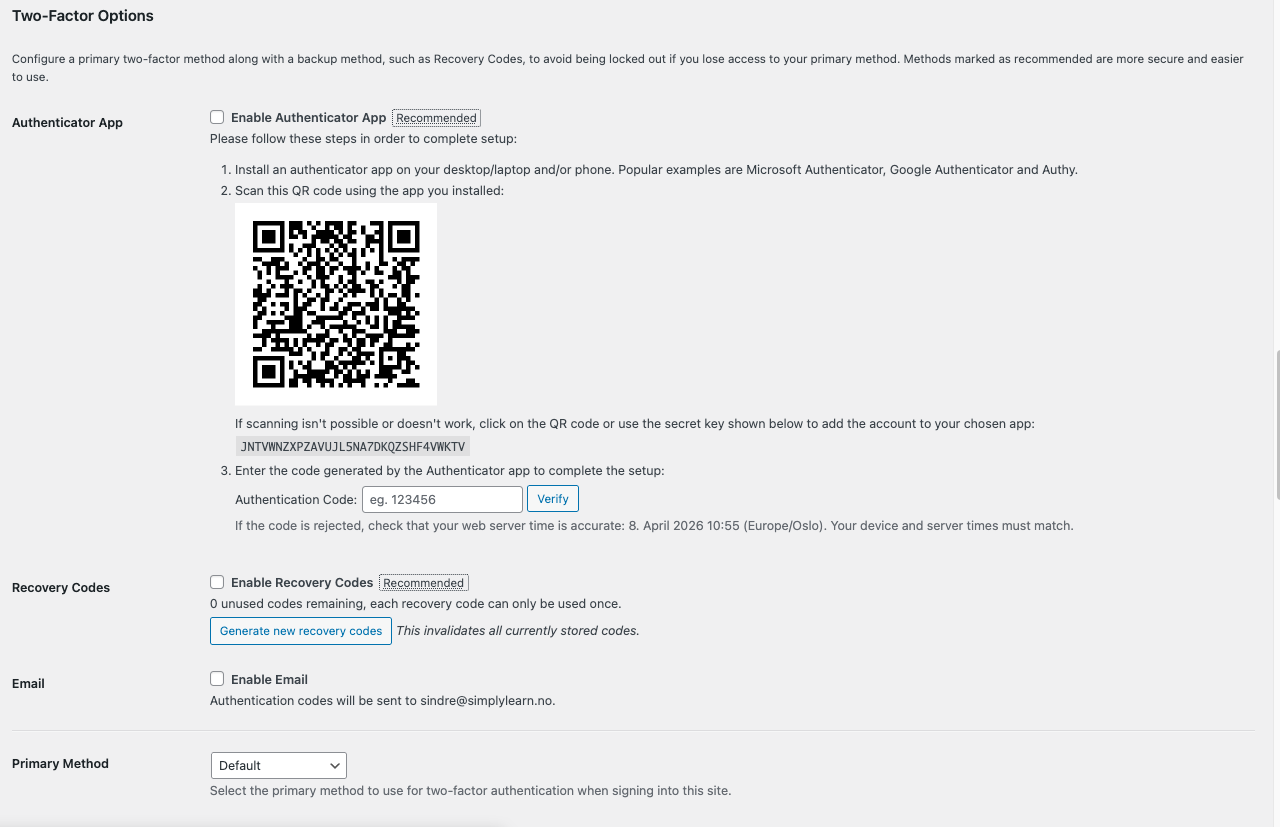
- When you log in as an administrator, you'll be redirected to your Profile page. Scroll down to the Two-Factor Options section:
-
Check Enable Authenticator App.
-
Open your authenticator app on your phone and scan the QR code shown on screen. If scanning doesn't work, you can manually enter the secret key displayed below the QR code.
-
Your authenticator app will now show a 6-digit code that changes every 30 seconds. Enter this code in the Authentication Code field and click Verify.
-
Scroll down and click Update Profile to save your changes.
After enabling the authenticator app, also check Enable Recovery Codes and click Generate new recovery codes. Save these codes somewhere safe — they let you log in if you lose access to your phone.
How login works with 2FA
After 2FA is enabled, your login flow changes:
- Enter your username and password as normal
- You'll see a second screen asking for your authentication code
- Open your authenticator app, enter the 6-digit code, and click Log In
The code changes every 30 seconds, so enter the current one. If it's rejected, wait for the next code and try again.
What if I can't access my authenticator app?
If you've set up recovery codes, use one of those to log in. Each recovery code can only be used once.
If you don't have recovery codes, contact your site administrator to reset your 2FA settings.
What's Next
- User Roles — understand the different roles and their permissions
- Inviting Users — add new users to your LMS