Email Notifications
Customize automated email templates, send manual communications to groups or courses, and track all sent messages from one place.
Administrators, Editors, and SCORM Course Editors have access to Email Management by default.
Overview
From your WordPress dashboard, go to MentorKit LMS → Emails.
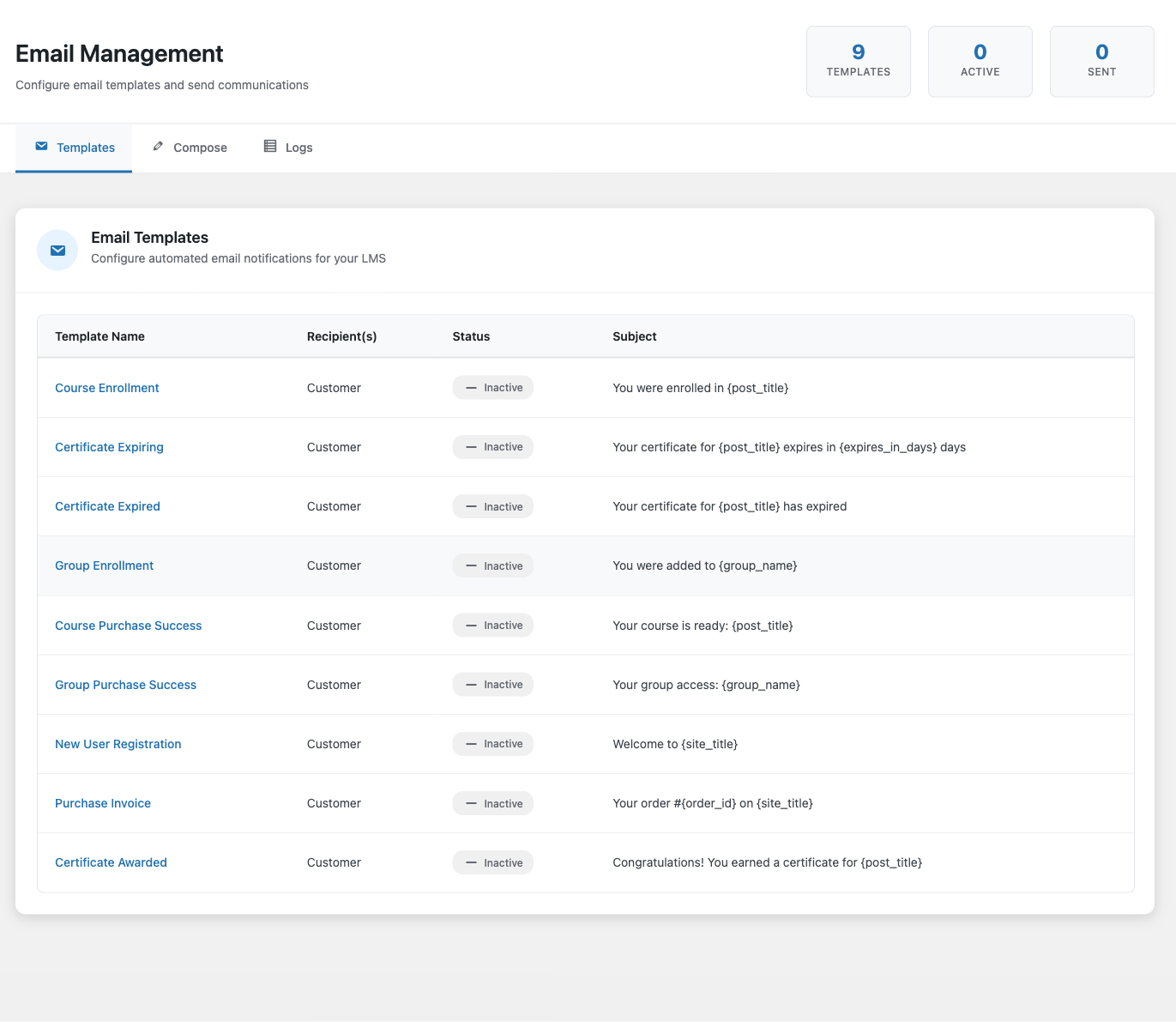
The page has three tabs:
| Tab | Purpose |
|---|---|
| Templates | Configure automated email notifications |
| Compose | Send one-off emails to groups, courses, or individual users |
| Logs | View history of all sent and queued emails |
Templates
MentorKit LMS Pro ships with 9 email templates. Each can be enabled or disabled independently.
| Template | Sends when... |
|---|---|
| Course Enrollment | A user is enrolled in a course |
| Group Enrollment | A user is added to a group |
| Certificate Awarded | A user earns a certificate |
| Certificate Expiring | A certificate is about to expire |
| Certificate Expired | A certificate has expired |
| Course Purchase Success | A WooCommerce course purchase completes |
| Group Purchase Success | A WooCommerce group purchase completes |
| Purchase Invoice | A WooCommerce order completes |
| New User Registration | A new WordPress account is created |
Editing a Template
Click any template name to open the editor. Each template has four fields:
| Field | Description |
|---|---|
| Enable this email | Toggle the template on or off |
| Subject | The email subject line — supports placeholders |
| Message | Rich text editor for the email body — supports placeholders |
| Content Type | Choose HTML or Text format |
Click Save Template when done.
Use the Send Test Email button at the bottom of the editor to preview how the email looks. Enter any email address and click to send a test.
Placeholders
Placeholders are dynamic values replaced with real data when the email is sent. Available placeholders are shown below the editor.
Recipient placeholders:
| Placeholder | Replaced with |
|---|---|
{display_name} | Recipient's display name |
{first_name} | First name |
{last_name} | Last name |
{user_email} | Email address |
Content placeholders:
| Placeholder | Replaced with |
|---|---|
{post_title} | Course or group name |
{post_url} | Link to the course page |
{group_name} | Group name |
{group_url} | Link to the group page |
{certificate_url} | Link to view/download certificate |
{expires_at} | Certificate expiry date |
{expires_in_days} | Days remaining until expiry |
Order placeholders (WooCommerce):
| Placeholder | Replaced with |
|---|---|
{order_id} | Order number |
{order_total} | Order total with currency |
{order_date} | Order date |
Site placeholders:
| Placeholder | Replaced with |
|---|---|
{site_title} | Your website name |
{site_url} | Your website URL |
Certificate Expiry Reminders
The Certificate Expiring template has an extra setting: Days before expiry. This controls how many days before a certificate expires the reminder is sent. Default is 7 days.
MentorKit runs a daily background check for expiring and expired certificates and sends the appropriate emails automatically.
Compose
The Compose tab lets you send one-off emails without a template — useful for announcements, reminders, or follow-ups.
Selecting an Audience
| Audience type | Who receives |
|---|---|
| Group | All users enrolled in one or more selected groups |
| Course | All users enrolled in one or more selected courses |
| Selected users | Specific users or email addresses you enter |
For groups and courses, use the searchable dropdown. For individual users, type to search existing users or enter email addresses directly.
Sending
- Choose your Audience
- Optionally select Use template to pre-fill subject and message
- Enter a Subject and write your Message
- Choose Content Type (HTML or Text)
- Click Send Email
Emails to 20 or fewer recipients are sent immediately. Larger sends are queued for background processing to avoid server timeouts.
Logs
The Logs tab shows a history of all email batches — both automated and manual.
| Column | Shows |
|---|---|
| Date | When the email was sent or queued |
| Template | Template name, or "Custom" for manual sends |
| Subject | The email subject line |
| Recipients | Number of recipients |
| Status | Sent (green) or Queued (gray) |
| Triggered by | Admin username, or "System" for automated emails |
Multi-Language Support
Templates support English and Norwegian (Bokmål) out of the box. MentorKit automatically uses the template matching your WordPress site language (Settings → General → Site Language). All other languages fall back to English.
What's Next
- Theming & Customization — customize colors and styling for your LMS
- User Roles — understand the different roles in MentorKit LMS
- Inviting Users — invite new users and send them a setup email