Inviting Users
This guide covers how to invite new users to your LMS — both from the WordPress admin and from the group leader dashboard.
Admin Invite
Admins and LMS Managers can invite users from MentorKit → Invite User.
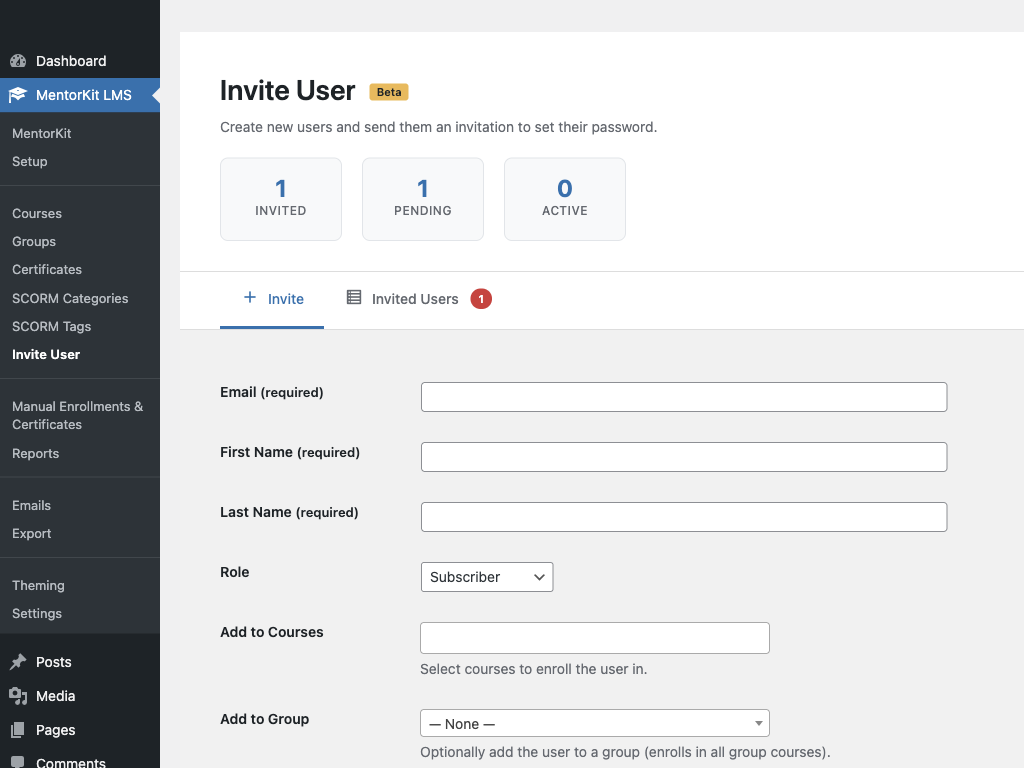
Invite Form
Fill in the following fields:
| Field | Description |
|---|---|
| The new user's email address | |
| First Name | User's first name |
| Last Name | User's last name |
| Role | The role to assign (see below) |
Role-Specific Assignments
Depending on the role you select, additional assignment fields appear:
| Role | Additional Fields |
|---|---|
| Subscriber | Add to Courses (multi-select), Add to Group (single select) |
| Course Creator | Add to Courses (multi-select) |
| Group Leader | Assign to Groups (multi-select) |
| LMS Manager | No additional fields |
After submitting, the user receives an invitation email with a link to set their password.
Check Set custom password if you want to create the account with a specific password instead of sending an email invitation. This is useful when onboarding users in person.
Invited Users List
Switch to the Invited Users tab to see all users you've invited. The table shows:
| Column | Description |
|---|---|
| User | Display name |
| Email address | |
| Role | Assigned role |
| Status | Pending (hasn't logged in) or Active |
| Invited | When the invitation was sent |
| Actions | Edit profile or Resend invitation |
You can Resend the invitation email to users who haven't logged in yet.
Group Leader Invite
Group leaders can invite users directly from their My Groups dashboard — no WordPress admin access needed.
How to Invite
- Go to the My Groups page and select your group
- Click the Invite tab
- Fill in Email, First Name, Last Name, and select a Role
- Click Send Invitation
Available Roles
Group leaders can invite users as:
| Role | What Happens |
|---|---|
| Subscriber | User is enrolled in the group and gets access to its courses |
| Group Leader | User is enrolled AND added as a leader of the group |
The invited user receives an email with a link to set their password. Once they log in, they'll see their enrolled courses on the My Profile page.
Group leaders can only invite to groups they manage. If the email is already registered, the invitation will be rejected — the admin must enroll existing users manually.
Promote a Subscriber to Group Leader
If a subscriber is already enrolled in your group, you can promote them to group leader:
- On the group's member list, find the subscriber
- Click the Promote button next to their name
- The user's role changes to Group Leader and they gain access to the group leader dashboard
What's Next
- Managing Enrollments — enroll and unenroll users manually
- Group Settings — assign group leaders and configure group options