Single Choice
Use Single Choice when the learner must select one correct answer from a list of alternatives. Use Single Choice when:
- Only one answer is correct
- You want a clear correct or incorrect outcome
- The question is used for assessment or knowledge checks
How it works
Select the correct alternative to define the correct answer.
Edit Single Choice
To edit the task, select it in the layer list on the left.
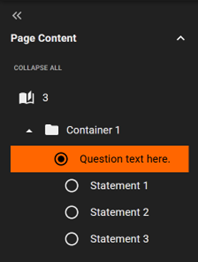
This opens the settings in the options panel on the right.
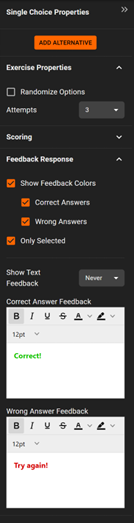
Add or remove alternatives
To add an alternative:
- Click
Add Alternativein the options panel
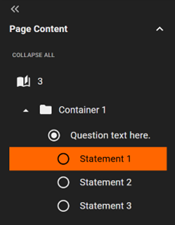
To delete an alternative:
- Select the alternative in the layer list
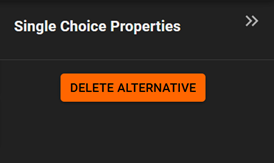
- Click
Delete Alternativein the options panel
Exercise properties
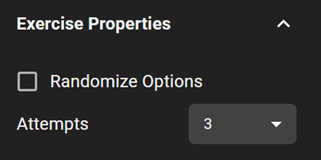
Randomize options
Randomizes the order of the alternatives.
Attempts
Set how many times the learner can attempt the task. Choose between 1–10 or unlimited.
Scoring

Set how many points the task is worth.
note
0 points means the task does not affect the total score.
Feedback Response
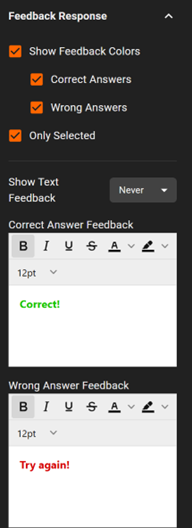
Control what feedback is shown after the learner submits an answer.
- Enable or disable feedback using the available checkboxes
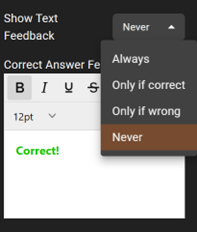
- Choose when feedback text is shown:
- Always
- Only if correct
- Only if wrong
- Never
The default setting is Never.