Creating a Quiz
Build a quiz from scratch: add questions, set point values, and choose how the quiz is scored.
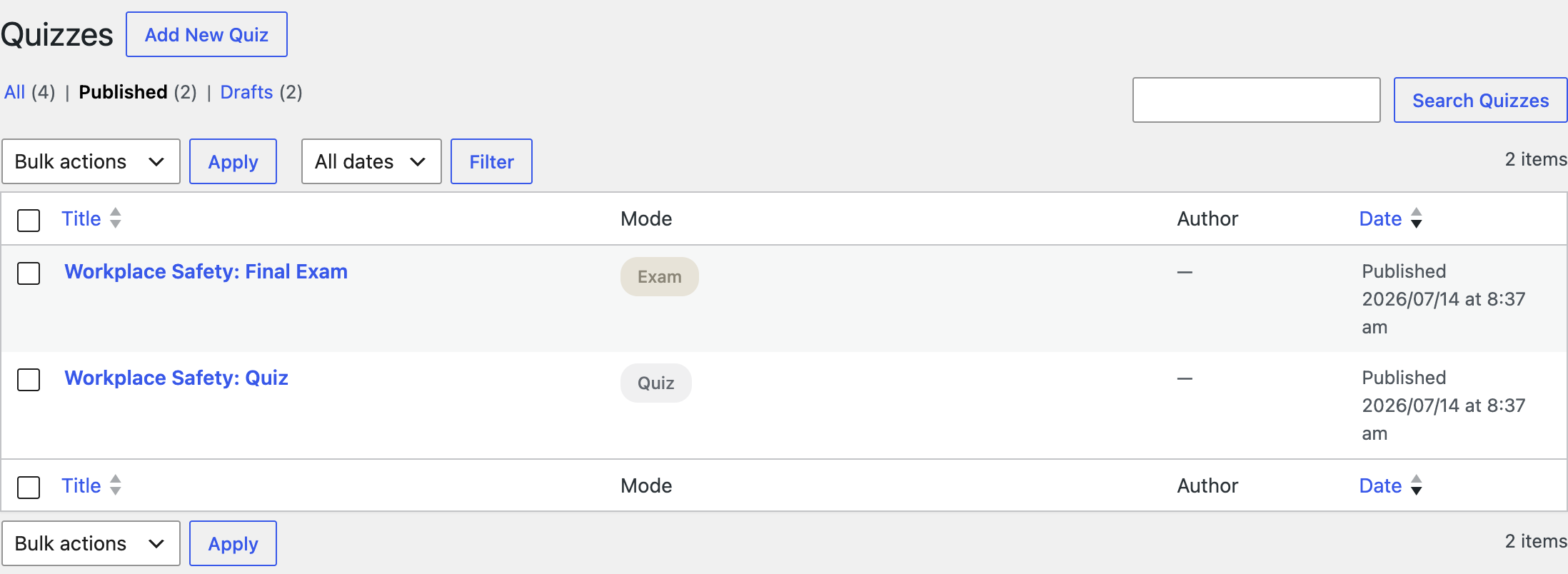
Navigate to Quizzes
From your WordPress dashboard, go to LMS Pro → Quizzes, then click Add New Quiz.
Add Questions
Give the quiz a title and an optional intro text shown to participants before they start. Then add questions on the Questions tab — either click Add question to write a new one, or open the Question library to reuse an existing question from your question bank.
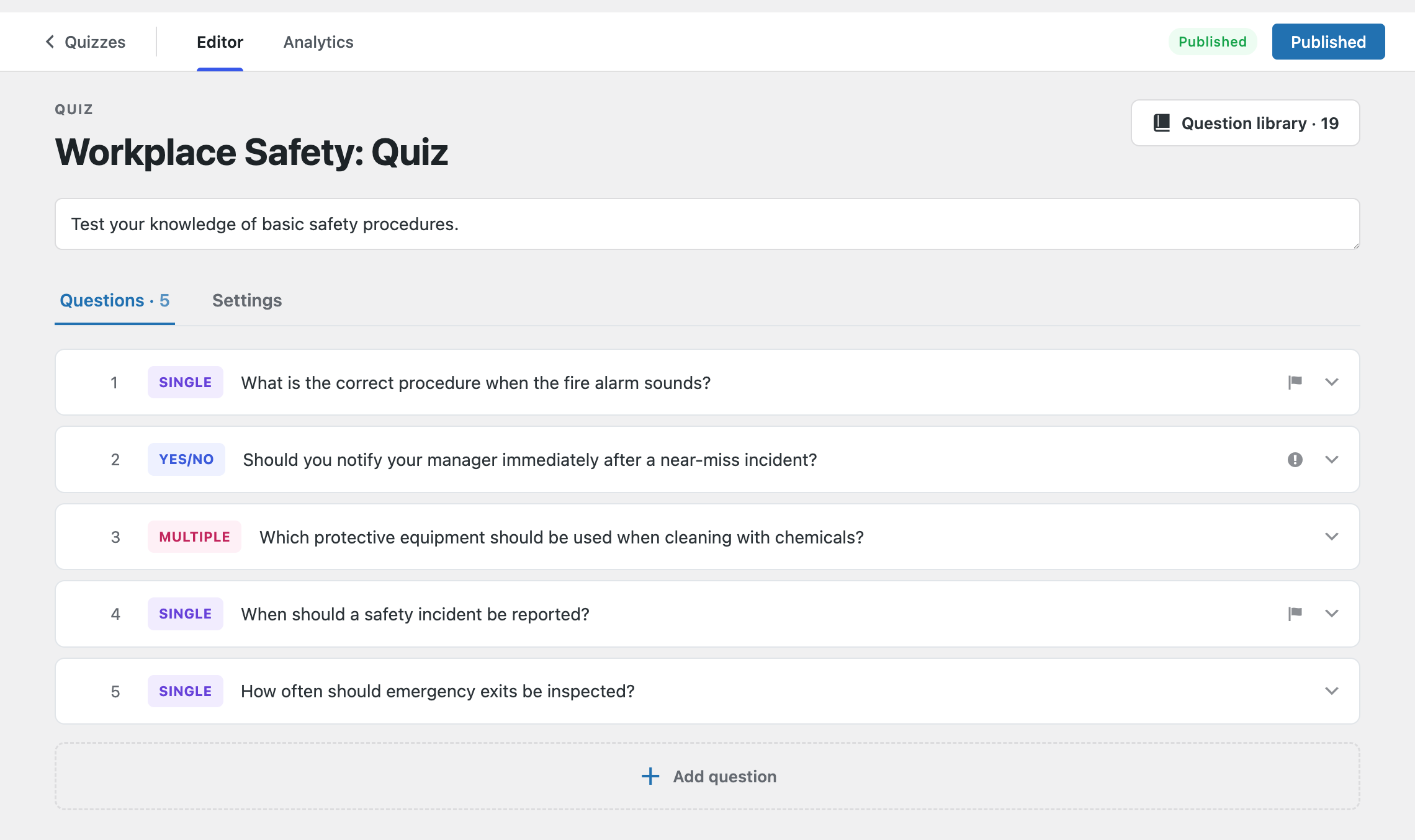
Each question has a type, shown as a colored badge in the list:
| Type | Label | Behavior |
|---|---|---|
single_choice | Single choice | One correct option |
multi_choice | Multiple choice | One or more correct options |
yes_no | Yes / No | Two-option variant of single choice |
free_text | Free text | Open answer — never auto-graded, always goes to manual review (see Exam Mode) |
Click a question's row to expand it and edit its options, mark the correct answer, and set its points.
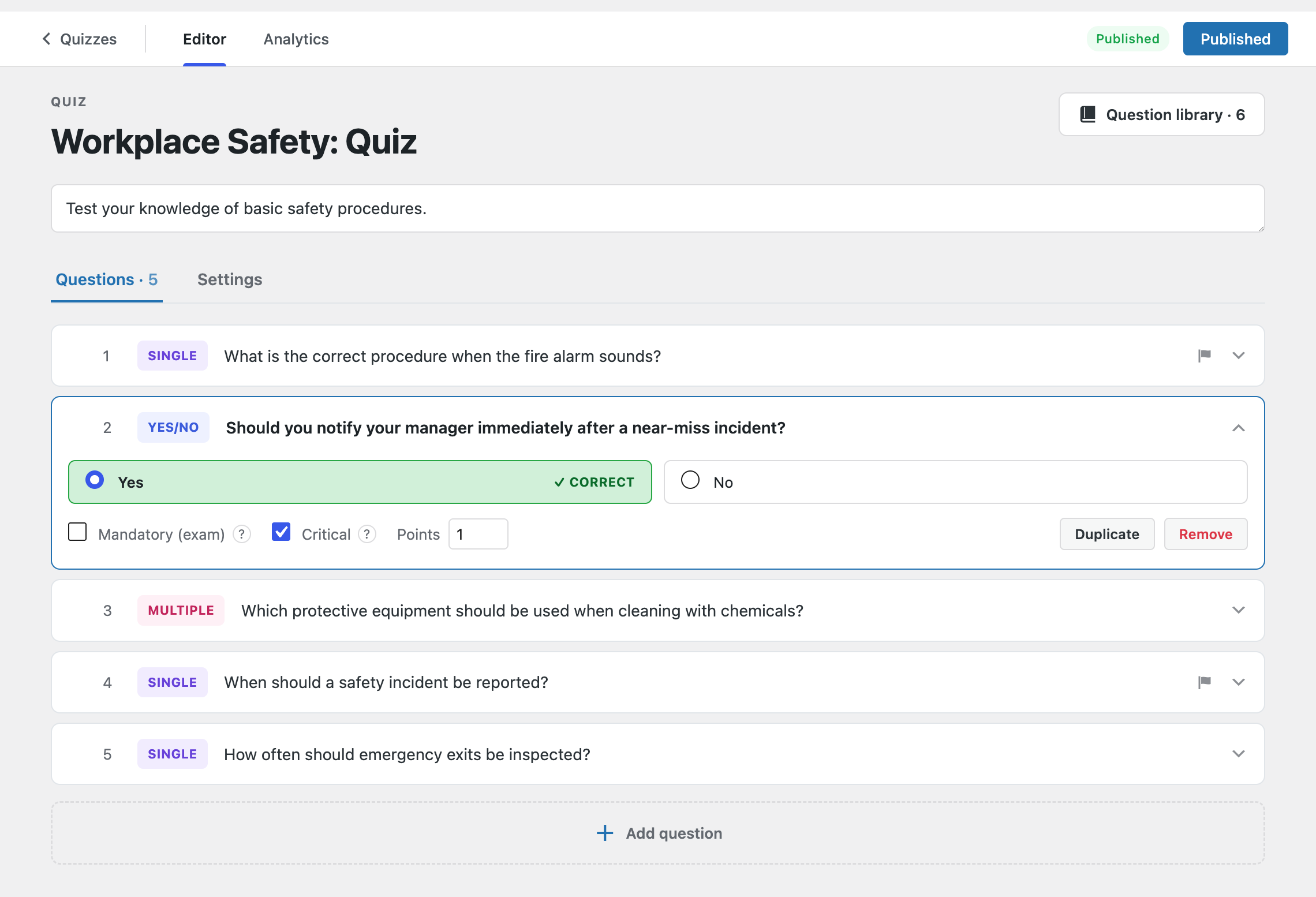
Points default to 1 for graded question types. Free-text questions default to 0 points since they're never auto-scored — award points manually when you review the answer.
The Mandatory and Critical checkboxes on each question control the random draw and the pass gate — see Mandatory vs. Critical Questions for how they work.
Configure Scoring and Access
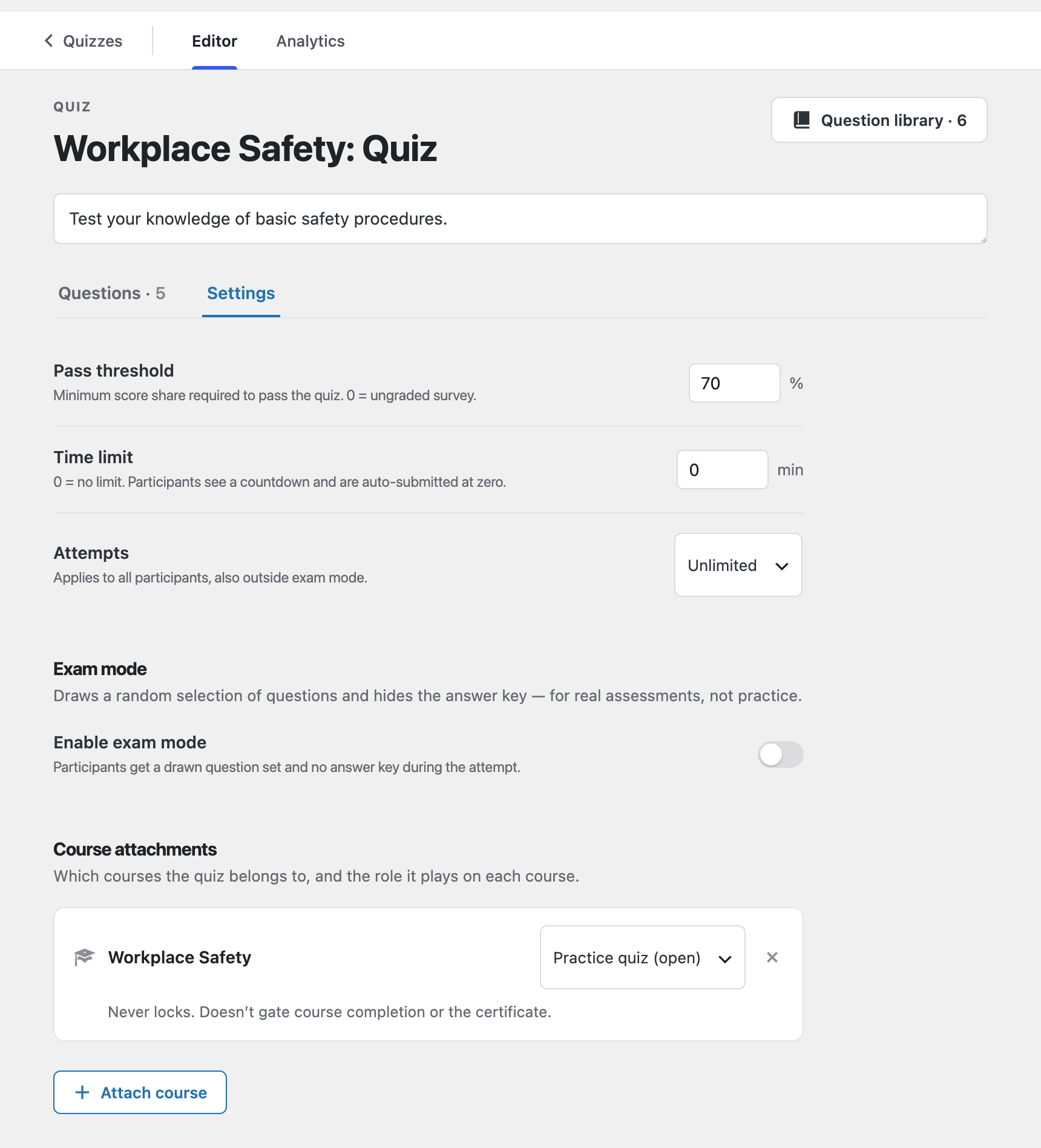
Switch to the Settings tab to set how the quiz is scored and delivered.
| Setting | Description |
|---|---|
| Pass threshold | Minimum score share required to pass. 0% turns the quiz into an ungraded survey. |
| Time limit | Minutes before auto-submit. 0 = no limit. |
| Attempts | Unlimited, once, or 3 attempts — applies whether or not Exam mode is on. |
| Exam mode | Draws a random question set and hides the answer key. See Exam Mode. |
By default, a quiz uses the questions you added in the order you added them — every published participant sees the same set. Turning on Exam mode changes this: the quiz can draw a random selection from a wider question bank instead. That behavior, along with pass-threshold nuances specific to exams, is covered in Exam Mode.
Attach the Quiz to a Course
Still on the Settings tab, scroll to Course attachments to link the quiz to one or more courses and choose its role:
- Practice quiz (open) — doesn't gate course completion or the certificate.
- Required to complete — must be passed before the course counts as complete and the certificate is issued.
Whether a quiz can be started before the course content is finished is a separate, course-level choice — by default only exams are held back. See Locking Quizzes to Course Content.
Publish
Click Publish (or Update) to make the quiz live. Participants can access it from the course page it's attached to, or directly if it isn't attached to any course.
What's Next
- Mandatory vs. Critical Questions — what the two question flags actually control
- Exam Mode — random question draws, timed attempts, and manual review
- The Learner Experience — what participants see when they take a quiz