Exam Mode
Turn a quiz into a timed, randomized assessment with a hidden answer key and manual review for open-ended answers.
This builds on Creating a Quiz and Mandatory vs. Critical Questions.
Enabling Exam Mode
On a quiz's Settings tab, turn on Enable exam mode. This changes how questions are selected and what the participant sees during the attempt — it draws a random selection of questions and hides the answer key from them during and after the attempt.
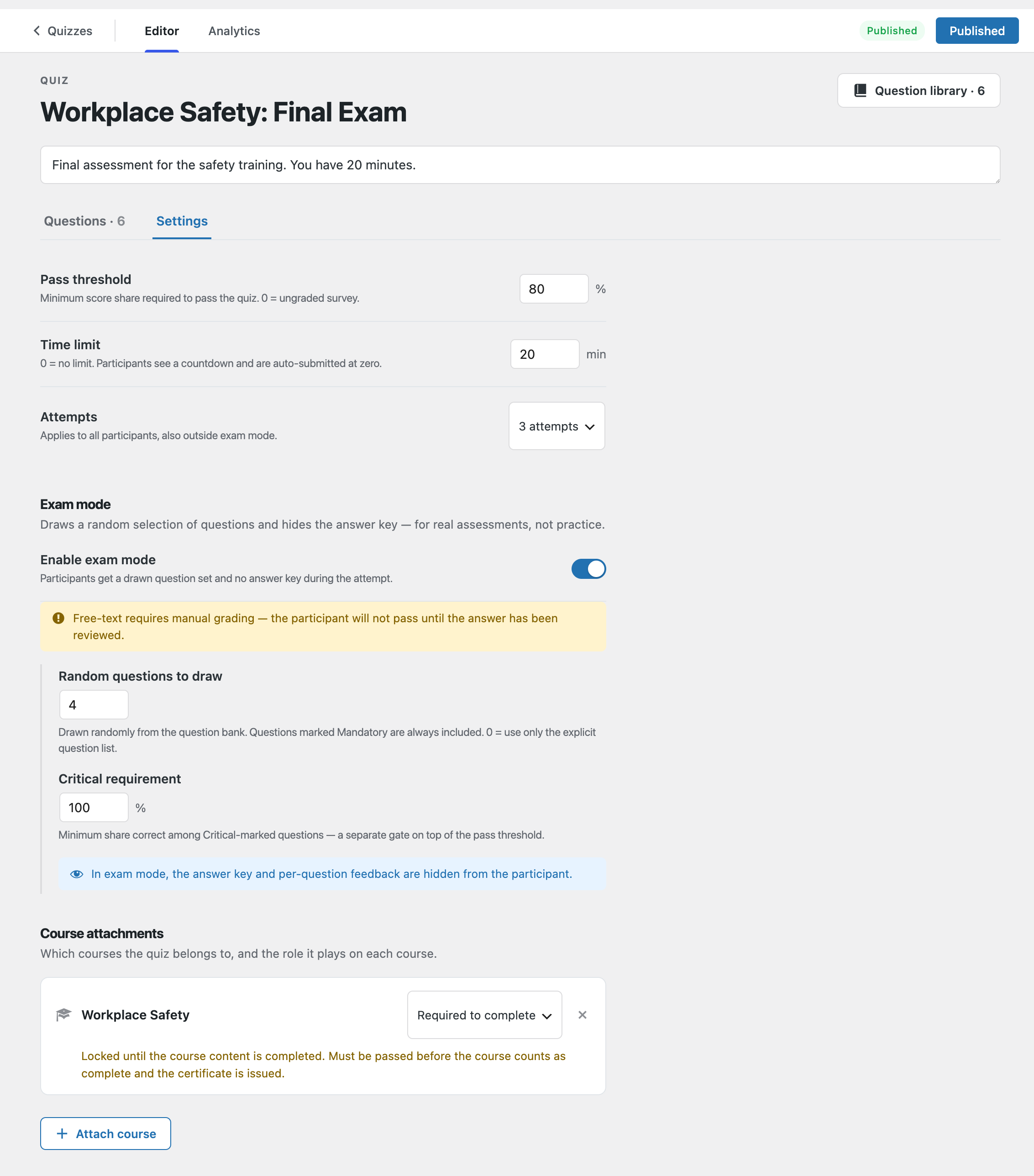
The core settings apply whether or not exam mode is on:
| Setting | Description |
|---|---|
| Pass threshold | Minimum score share required to pass. 0% = ungraded survey. |
| Time limit | Minutes before auto-submit. 0 = no limit. |
| Attempts | Unlimited, once, or 3 attempts. |
Random Question Draws
With exam mode on, three additional fields control how the question set is assembled:
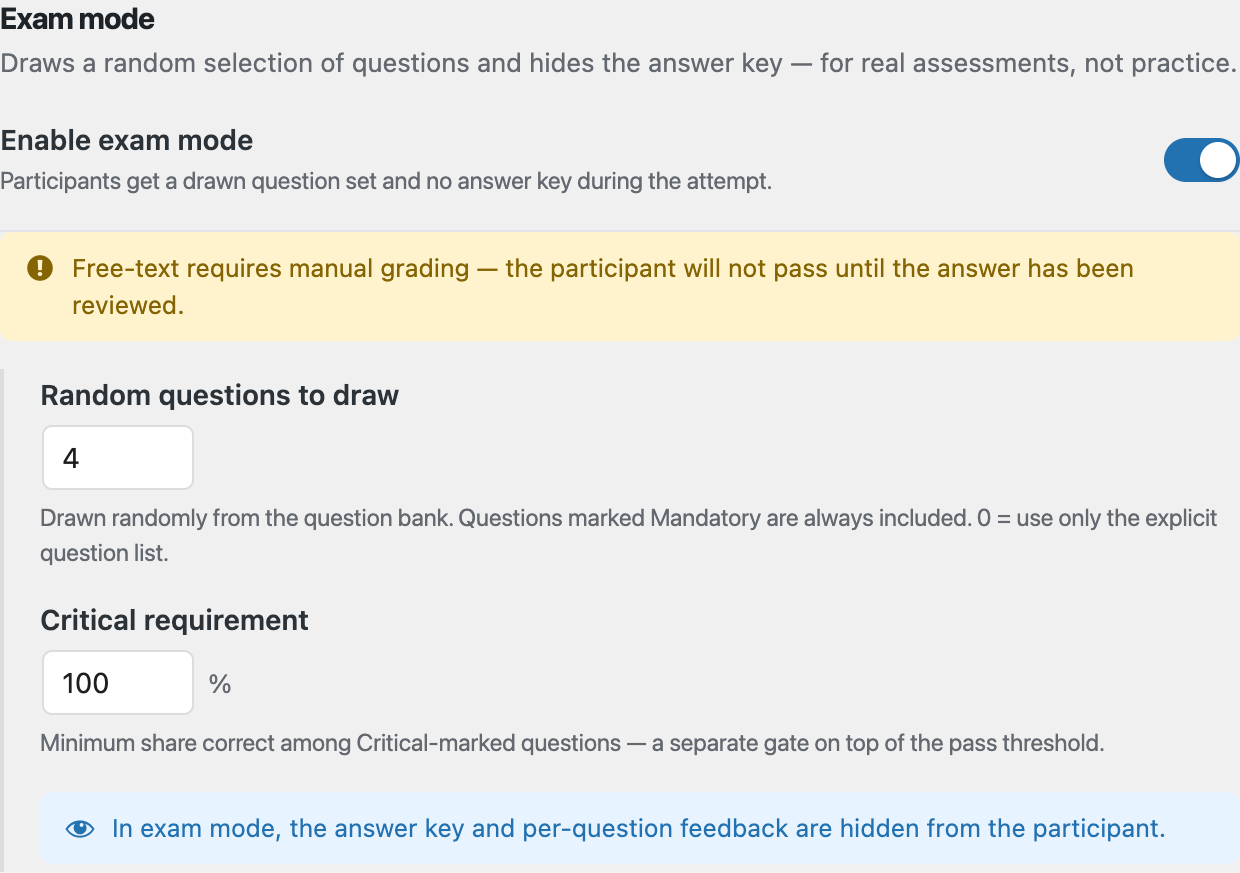
- Random questions to draw — how many questions to pull into each attempt. Questions marked Mandatory are always included first; the remaining slots are filled randomly. 0 means the quiz uses only its explicit question list, same as outside exam mode.
- Critical requirement — the minimum percentage of critical-flagged questions the participant must get right, on top of the overall pass threshold. See Mandatory vs. Critical Questions.
The editor also warns you here when the settings can't work as configured — when the quiz is set to draw more questions than the bank can supply, and when an exam contains free-text questions, which always need manual grading before anyone can pass.
Attach the exam to a course with the Required to complete role to gate the course's completion and certificate on passing it. An exam attached to a course is also locked until the participant has finished the course content — that's the default behavior for exam-mode quizzes, and the course can override it. See Locking Quizzes to Course Content.
The Participant's Pre-Start Screen
Before starting a timed exam, participants see a summary of what they're about to attempt:
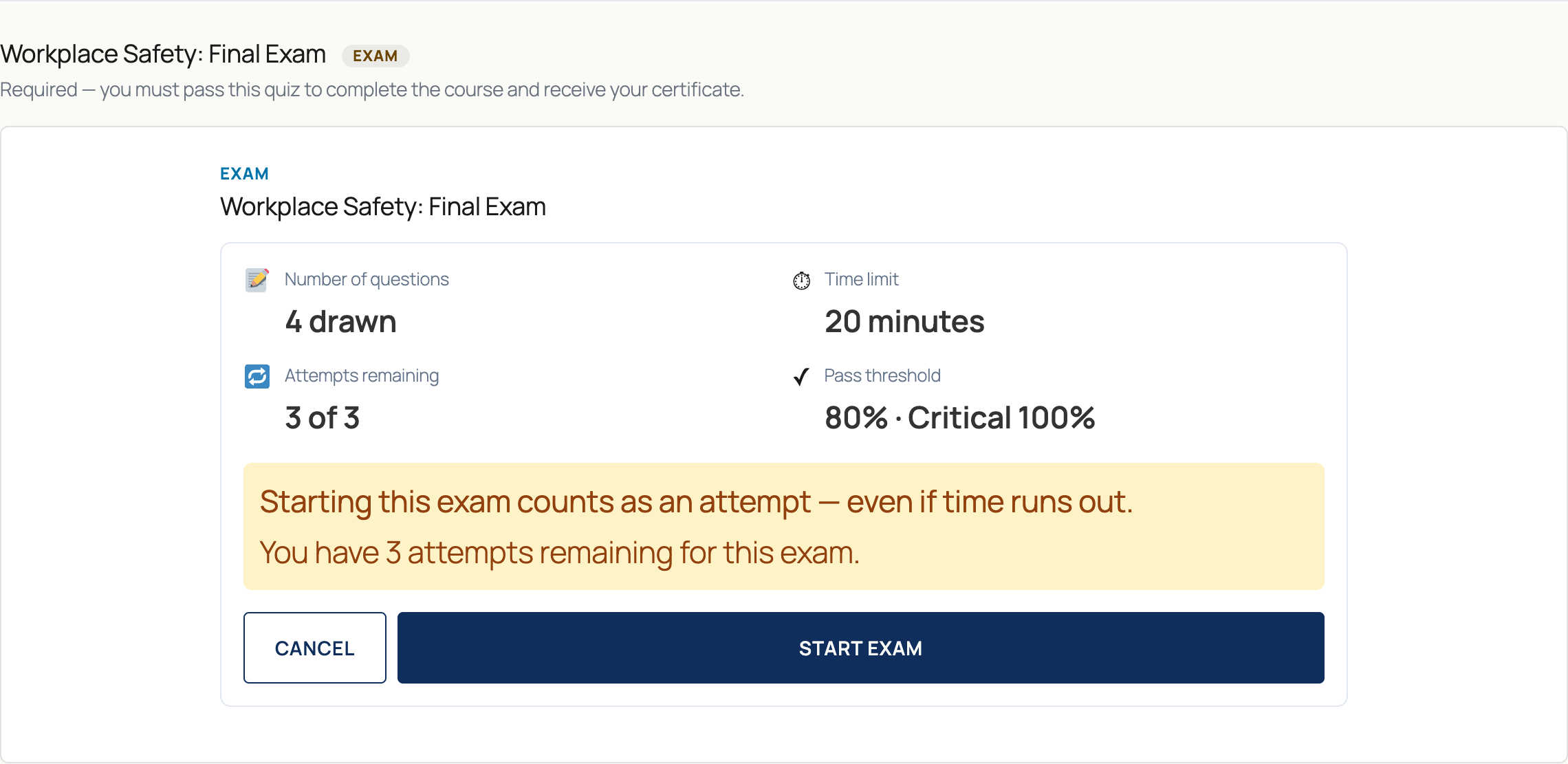
Starting the exam counts as an attempt immediately, even if the participant runs out of time without submitting — the warning on this screen makes that explicit.
Taking the Exam
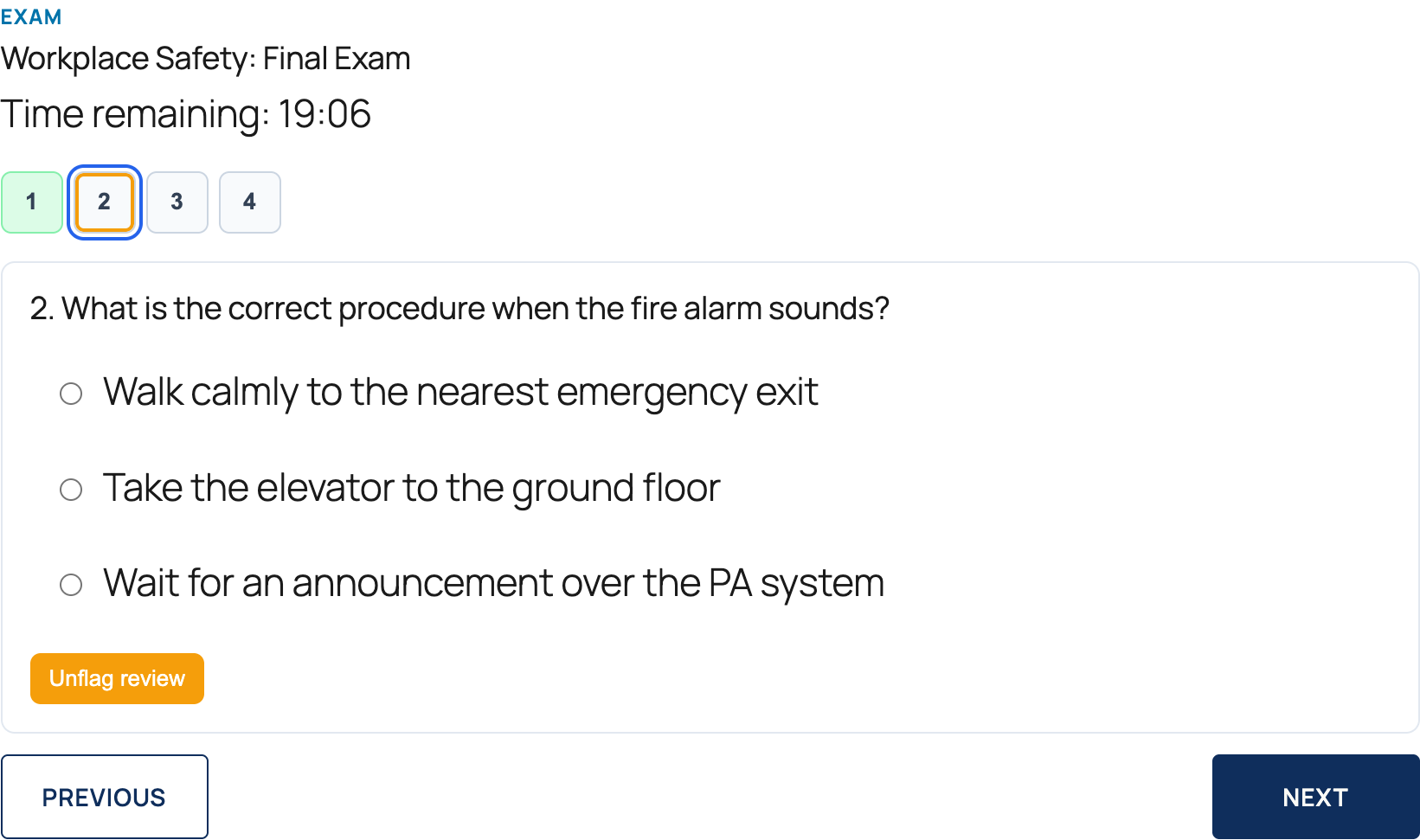
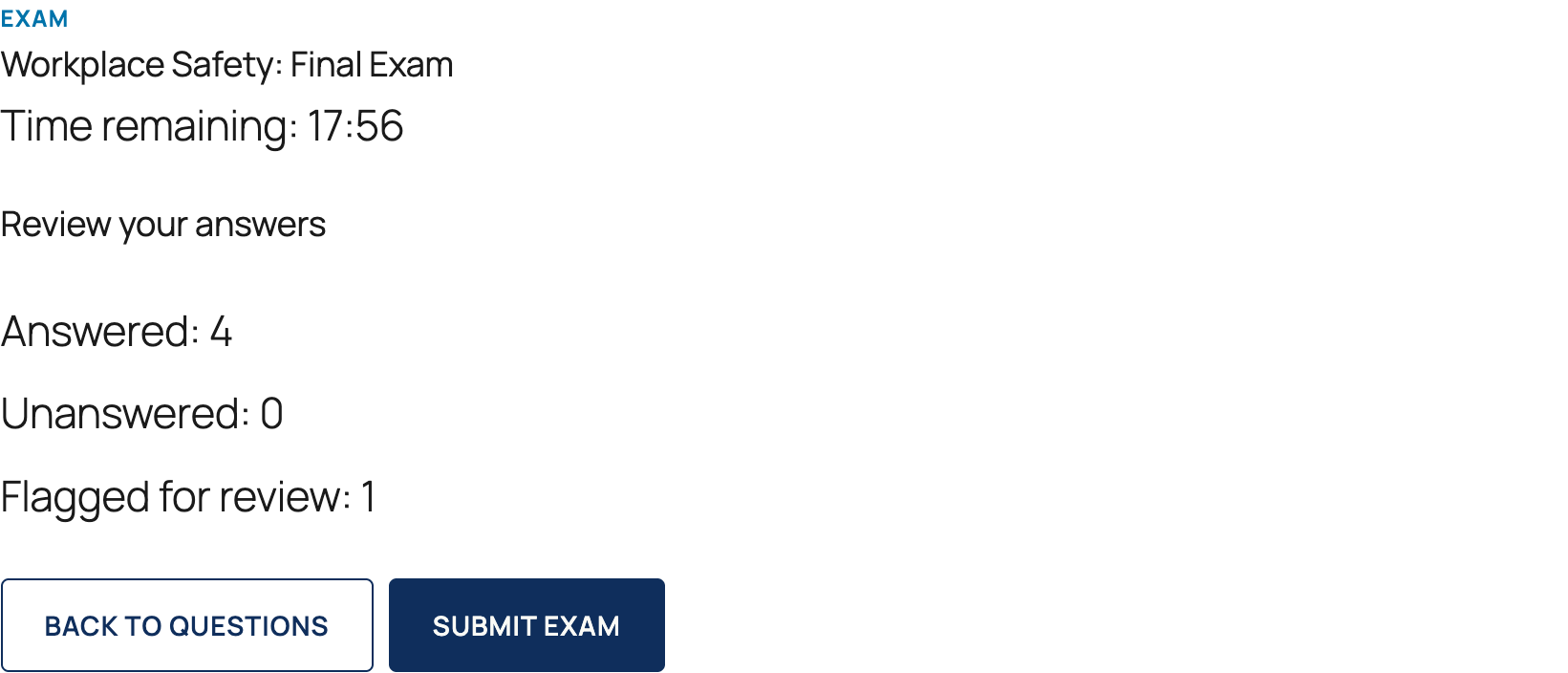
During the attempt, participants navigate between questions with numbered pills, see a live countdown, and can flag any question to revisit later.
Before submitting, participants see a summary of how many questions they answered, left blank, or flagged:
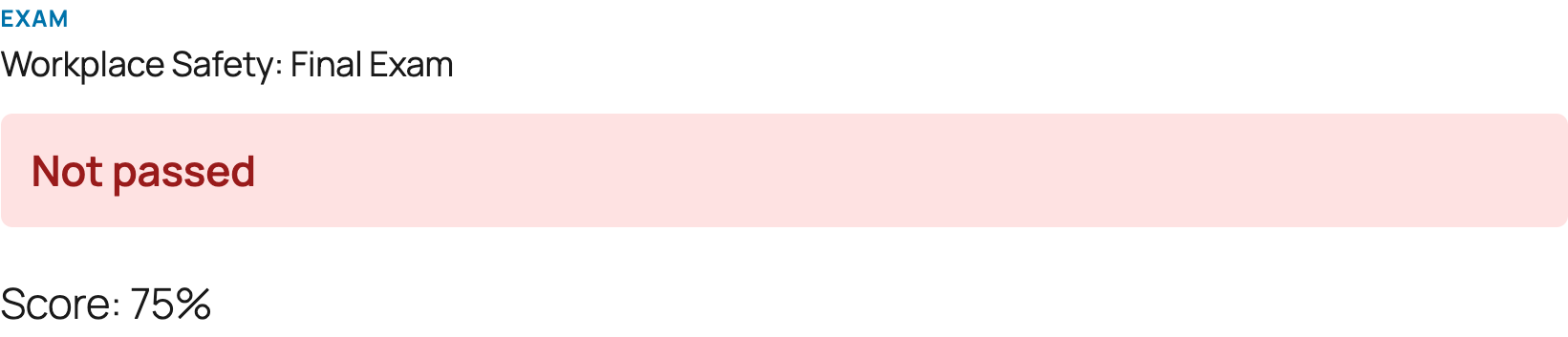
Once submitted, the result is shown without a per-question breakdown — exam mode keeps the answer key hidden even after the attempt:
Manual Review
Free text questions are never auto-graded — any attempt that includes an unanswered-by-the-system free-text question is marked Submitted for review, and the participant doesn't pass until you grade it.
Review pending answers under LMS Pro → Reports & Analytics → Quizzes, then open a specific attempt:
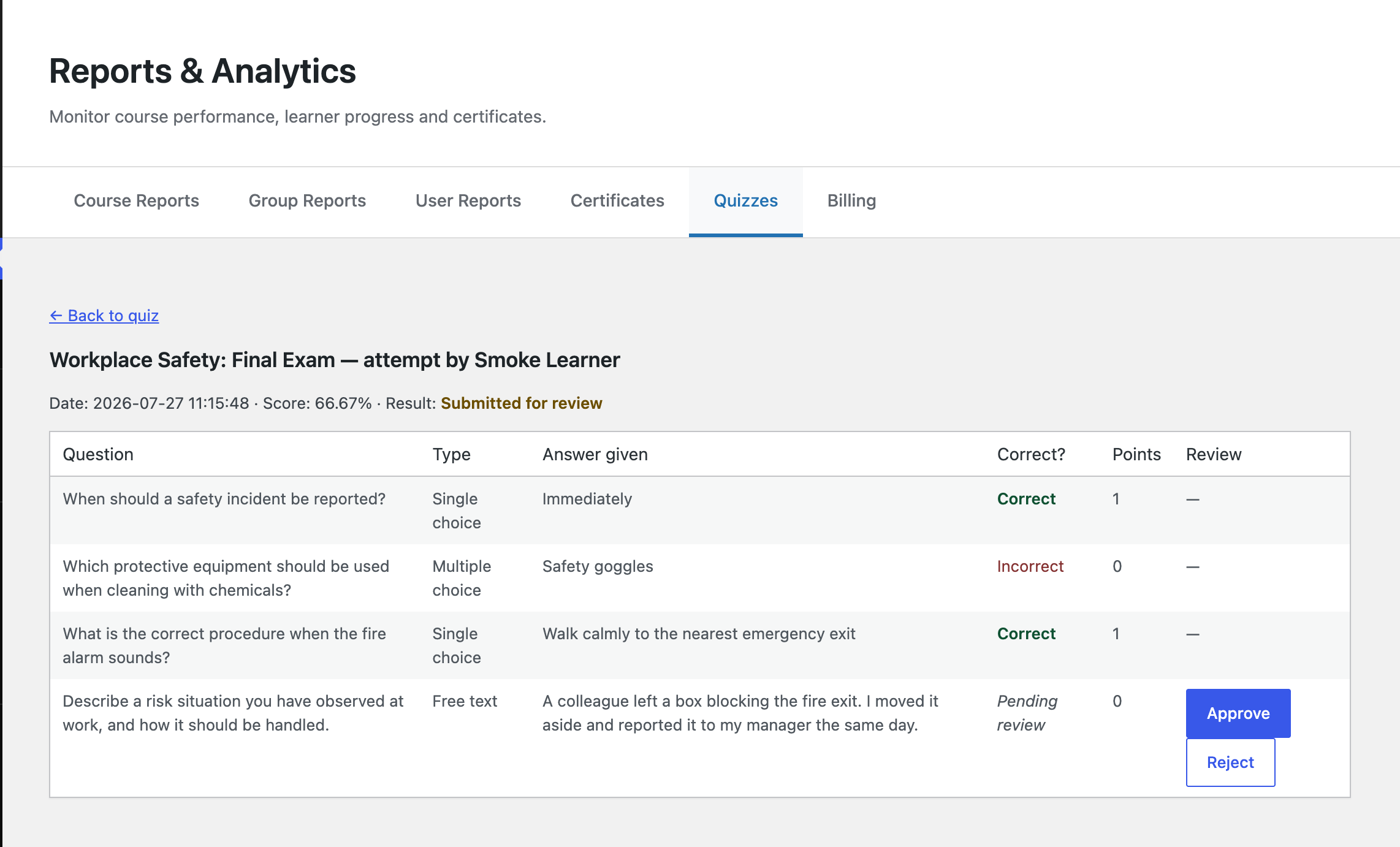
Click Approve or Reject for each free-text answer. Grading is final — once an answer is graded, it can't be re-graded. When you approve the last pending answer on an attempt, the pass/fail result is recalculated and the participant is notified by email.
A red badge next to LMS Pro and Reports & Analytics in the admin menu shows how many attempts are waiting for review.
What's Next
- The Learner Experience — how quizzes and exams show up on the course page
- Mandatory vs. Critical Questions — what the critical requirement actually gates