Tax Class per Course and Group
Override the WooCommerce tax class on individual courses or groups — useful when one course is VAT-exempt (e.g. educational undervisning) while the rest of your catalog is on the standard rate.
- The course or group must use Buy now access so it has a linked WooCommerce product
- The tax classes you want to use must already be seeded in WooCommerce — usually set up by a Shop Manager. See the note below.
Why per-product tax classes
By default, every WooCommerce product uses the Standard tax class. If your store sells a mix of taxable products (e.g. digital courses at 25% MVA) and tax-exempt products (e.g. classroom training that qualifies as educational undervisning), you need to override the tax class on the individual product.
The MentorKit tax class selector exposes this directly on the course or group editor, so you don't have to leave LMS Pro and edit the linked WooCommerce product separately.
Before you start: tax rates must exist in WooCommerce
The dropdown only lists classes that have an actual rate seeded under WooCommerce → Settings → Tax. That page is usually owned by a Shop Manager or Administrator, not the LMS Manager.
If the dropdown only shows Standard — or a class is listed without a percentage in brackets — the underlying WooCommerce tax rates haven't been configured for your base country yet. Ask your Shop Manager to seed them, or email support@mentorkit.com and we'll get it sorted.
Once the rates exist, the dropdown on the course/group editor shows the configured percentage next to each class name (for example, Standard (25%) and Zero rate (0%)).
Set the tax class on a course
- Edit a course under MentorKit → Courses
- In SCORM Package Details, set Course Access to Buy now
- Scroll to the WooCommerce Settings meta box
- Pick the right class from the Tax class dropdown
- Click Update
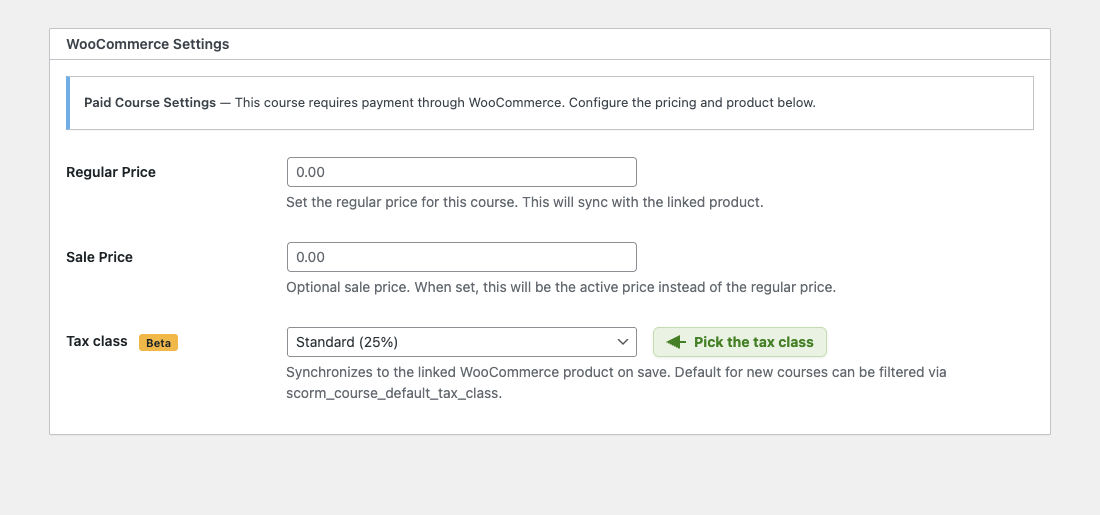
On save, the value is written to the linked WooCommerce product's _tax_class field and the product's tax status is forced to taxable so the rate actually applies.
Set the tax class on a group
- Edit a group under MentorKit → Groups
- In Group Settings, set Group Access to Buy now
- Scroll to the WooCommerce Settings meta box
- Pick the right class from the Tax class dropdown
- Click Update
The behaviour is identical to the course side — same dropdown, same options, same propagation to the linked product on save.
How the dropdown picks its initial value
| Situation | Initial selection |
|---|---|
| Course/group already has a linked product | The product's current tax class |
| New course/group with no linked product yet | Empty (Standard) — unless overridden by the scorm_course_default_tax_class or scorm_group_default_tax_class filter |
If you want every newly-created course or group to default to a specific class (e.g. all groups should default to Zero rate because most of your catalog is exempt), wire up the corresponding filter in a small mu-plugin:
add_filter( 'scorm_group_default_tax_class', fn() => 'zero-rate' );
add_filter( 'scorm_course_default_tax_class', fn() => 'zero-rate' );
The selector is marked Beta because it's a recent addition. The underlying behaviour (writing the tax class + forcing the product to taxable on the linked product) is straightforward — but double-check the first few orders against your accounting export until you're confident the right MVA shows up on the invoices.
Troubleshooting
The dropdown only shows "Standard" — no other classes, or no percentages in brackets. The underlying WooCommerce tax classes/rates aren't configured. Ask your Shop Manager (or support@mentorkit.com) to seed them under WooCommerce → Settings → Tax.
The selection doesn't stick. You likely saved through the main "Update" button while the WooCommerce meta box was collapsed or its inputs weren't submitted. Make sure the WooCommerce Settings section is expanded and the Tax class field is visible before saving.
What's Next
- Paid Courses — Full WooCommerce integration for individual courses
- Paid Groups — Sell access to groups via WooCommerce