Hide a Course from the Public Listing
Exclude a single course from the public courses grid while keeping it fully functional for enrolment, group assignment, and dashboards — ideal for group-only, internal, or stealth courses.
This feature is marked Beta in the admin UI. It is new and under active development. If you run into unexpected behaviour, email support@mentorkit.com.
You need the LMS Manager capability (or an administrator account) to edit course settings.
When to use it
Turn a course invisible to the public grid when it should exist on the site but not be browsable from the Courses page:
- A group-only course that should only be reachable through a group, not the public Kurs/Courses tab.
- An internal pilot you're testing with a small team before rolling out.
- A stealth course for a customer that prefers not to be listed publicly.
Hidden courses still work exactly like any other course — direct URL, enrolment, group assignment, certificates, dashboards, admin — they just don't show up in the [scorm_courses_grid] shortcode used on the public courses page.
Where to find it
From your WordPress dashboard, go to MentorKit → Courses and open the course you want to hide.
In the SCORM Package Details meta box, scroll to the Visibility section (marked with a Beta badge).
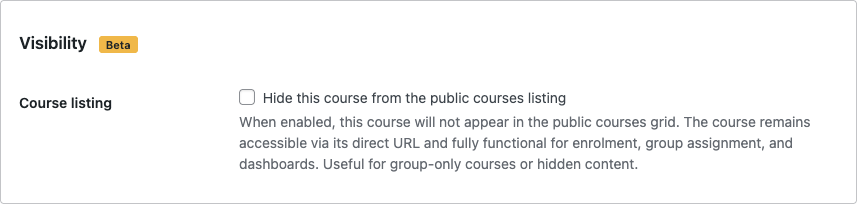
How to enable it
- Tick Hide this course from the public courses listing.
- Click Update to save.
The course disappears from the public courses grid immediately. Refresh the page to confirm.
What stays the same
Hiding a course only affects the public courses grid. Everything else keeps working:
| Area | Behaviour when hidden |
|---|---|
Direct URL (/courses/<slug>/) | Still loads normally — share the link with anyone. |
| Group assignment | Still works — the course shows up inside its group(s). |
| Self-enrolment | Logged-in users can still enrol from the course page. |
| Manual enrolment | LMS Managers can still enrol users from the admin. |
| Certificates | Still issued on completion. |
| Dashboards | Learners still see the course in their learning dashboard. |
| Admin list | Course still appears under MentorKit → Courses. |
How to unhide
Untick the Visibility checkbox and click Update. The course reappears in the public courses grid.
Pair Hide from listing with a private group to deliver a course that's only reachable through a single invitation flow — neither the course nor the group surfaces in the public archives.
What's Next
- Edit Course Access — Free, Buy now, and group-only access modes.
- Hide a Group from the Public Listing — The same toggle, but for groups.