Hide a Group from the Public Listing
Exclude a single group from the public /groups/ archive while keeping it fully functional for enrolment, invitations, and dashboards — ideal for demo, internal, or stealth groups.
This feature is marked Beta in the admin UI. It is new and under active development. If you run into unexpected behaviour, email support@mentorkit.com.
You need the LMS Manager capability (or an administrator account) to edit group settings.
When to use it
Turn a group invisible to the public archive when it should exist on the site but not be browsable from the groups grid:
- A demo group you share with prospects via a direct link.
- An internal pilot you're testing with a small team before rolling out.
- A stealth cohort for a customer that prefers not to be listed publicly.
Hidden groups still work exactly like any other group — direct URL, self-registration, invitations, Group Leader dashboard, admin — they just don't show up in the public /groups/ grid.
Where to find it
From your WordPress dashboard, go to MentorKit → Groups and open the group you want to hide.
In the Group Settings meta box, find the Visibility row (marked with a Beta badge).
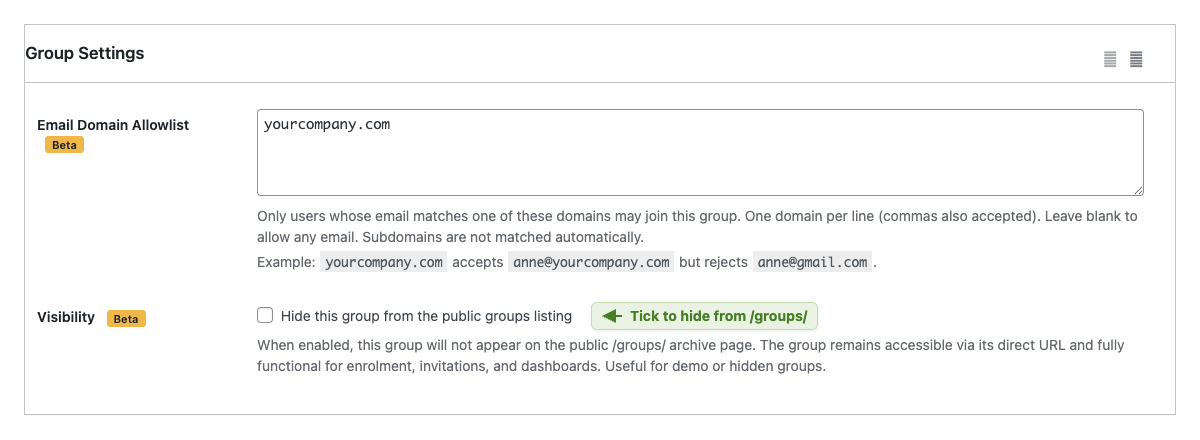
How to enable it
- Tick Hide this group from the public groups listing.
- Click Update to save.
The group disappears from /groups/ immediately. Refresh the archive to confirm.
What stays the same
Hiding a group only affects the public archive. Everything else keeps working:
| Area | Behaviour when hidden |
|---|---|
Direct URL (/groups/<slug>/) | Still loads normally — share the link with anyone. |
| Self-registration | Still works via the group's registration page. |
| Self-enrolment | Logged-in users can still enrol from the group page. |
| Invitations | LMS Managers and Group Leaders can still invite users. |
| Group Leader dashboard | Leaders still see and manage the hidden group. |
| Admin list | Group still appears under MentorKit → Groups. |
How to unhide
Untick the Visibility checkbox and click Update. The group reappears in the /groups/ listing.
Combine Hide from listing with the Email Domain Allowlist for a fully private group: not discoverable in the public grid, and only joinable by approved email domains.
What's Next
- Email Domain Allowlist — Restrict who can join the group by email domain.
- Group Settings — Other per-group options (seats, access type, certificates).
- Managing Enrollments — Add and remove learners manually.