Edit Course Access
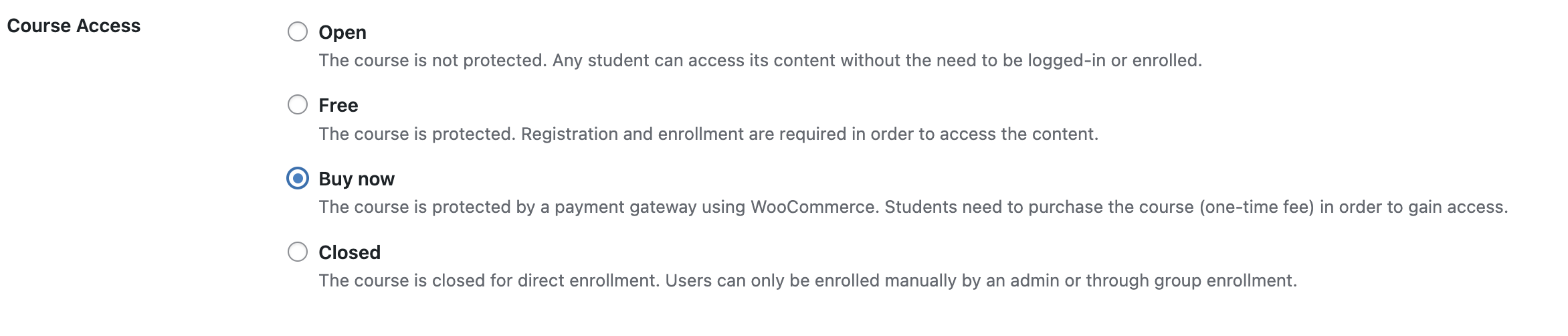
Control who can access your courses with four access types: Open, Free, Closed, and Paid.
Access Settings
In the course edit screen, find the Course Access Settings section.

By default, all courses are set to Free.
| Access Type | Who can access | Requires login | Requires enrollment |
|---|---|---|---|
| Open | Anyone | No | No |
| Free | Logged-in users | Yes | Yes |
| Closed | Admin-enrolled only | Yes | Yes (manual) |
| Paid | Purchasers | Yes | Yes (via WooCommerce) |
- Open — The course is not protected. Anyone can access the content without logging in.
- Free — Registration and enrollment are required. Users must be logged in to access the content.
- Closed — No self-enrollment. Users can only be enrolled manually by an admin or through group enrollment.
- Paid — Requires WooCommerce. Users purchase access through a linked WooCommerce product.
The Paid option only appears if WooCommerce is installed and the integration is enabled in MentorKit settings. Without WooCommerce, you'll see a notice explaining how to enable it.

When WooCommerce is active, the Buy now option appears in the access dropdown.
Required Role
Required Role is a Beta feature. If you encounter issues, contact support@mentorkit.com.
The Required Role dropdown restricts a course to users with a specific role. This is useful when certain courses should only be available to group leaders or LMS managers — not regular subscribers.
| Required Role | Who Can Access |
|---|---|
| None (default) | All enrolled users |
| Group Leader | Only users with the Group Leader role |
| LMS Manager | Only users with the LMS Manager role |
When a course has a required role:
- Users without the required role won't see the course in the course grid
- The course is hidden from CSV exports for non-qualifying users
- Within a group using Sequential Progression, role-restricted courses are skipped for users who don't qualify
Assigned Course Creators
If you use the Course Creator role, you can assign specific course creators to each course. This controls which course creators can edit the course and view its analytics.
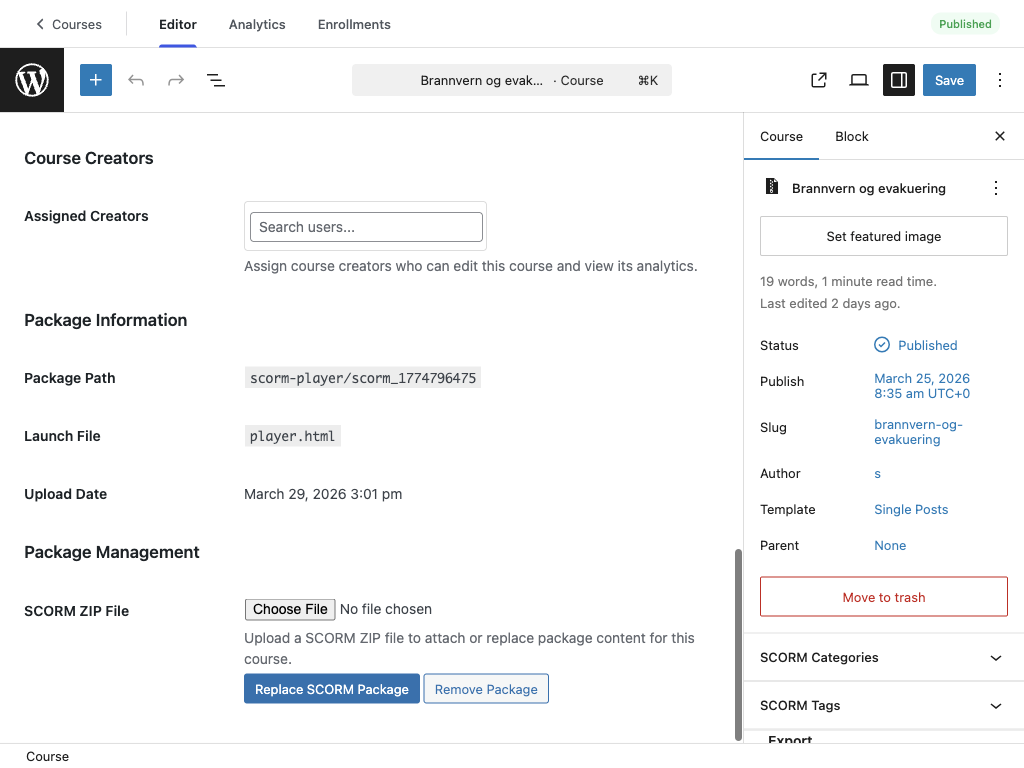
- In the course editor, scroll to the Assigned Creators section
- Type a name in the search field — only users with the Course Creator role appear
- Select a user from the dropdown
- Selected creators show as tags with a × to remove them
Assigned course creators can edit the course content, upload SCORM packages, and view enrollment analytics — but only for courses they're assigned to.
This section only appears for LMS Managers and administrators. Course creators themselves cannot reassign other creators.
What's Next
- Paid Courses — configure WooCommerce pricing and checkout settings
- Groups Overview — bundle courses together with group access
- Inviting Users — invite new users with the Course Creator role