Create a new user
-
Choose “Users” tab from the main menu.
-
Then click "New user" in the symbol menu.

-
Choose “Users” tab from the main menu.
-
Then click "New user" in the symbol menu.
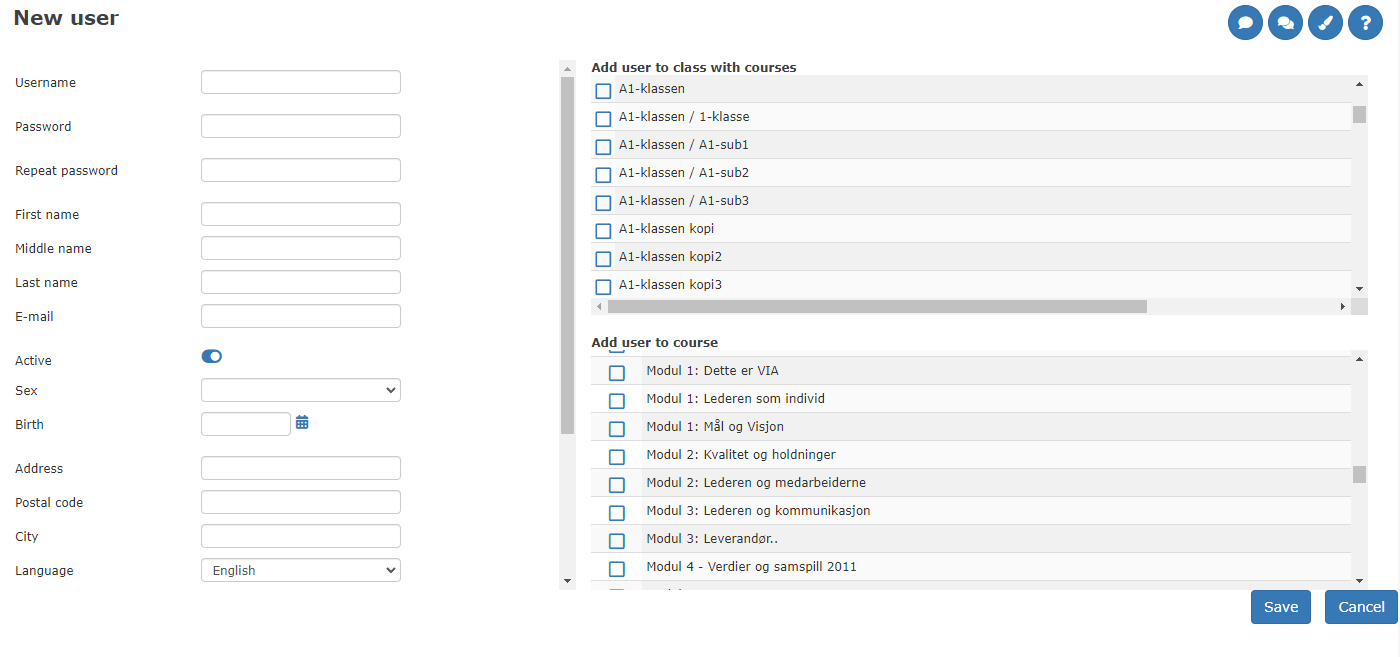
In the fields below the personalia/user
The number of input fields varies with the role. Some of the input fields are mandatory.
| Username | One user may not have the same username as another user at the same school. Usernames are UNIQUE and cannot be changed. |
| Password | You cannot view the user's password. To overwrite the old password, enter a new one and click Save. Users may have the same password. |
| Enter the user's email address. Visible in multiple reports and required if you assign courses via email. | |
| Menu language | Norwegian is set as the default menu language. Several languages are supported, but Mentorkit LMS is available only in Norwegian or English. |
| Country | Select a country. "Norway" is set as the default. |
| Note | Free text field that is also searchable. |
| Reserved time | For schools/companies with a limited number of hours, enter how many hours the user should have access to a course. |
| Phone number | You must enter the user's phone number. |
| Access level | New users are assigned the User role by default. You can change the user's rights here, but not to a level higher than your own. |
| Expiration date | After the specified date, the user will no longer have access to log in. |