Managing Enrollments
Administrators can manually enroll and unenroll users from groups through the Enrollments page.
Accessing the Enrollments Page
From your WordPress dashboard, go to Mentorkit → Enrollments.
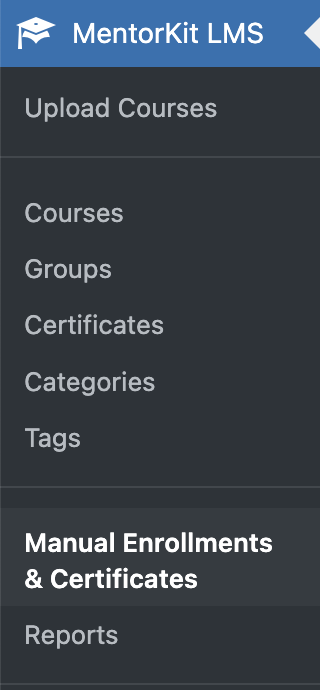
Enrolling a User
To manually enroll a user in a group:
- On the Enrollments page, locate the Group Enrollment section
- Select the user from the user dropdown
- Select the group from the group dropdown
- Click Enroll
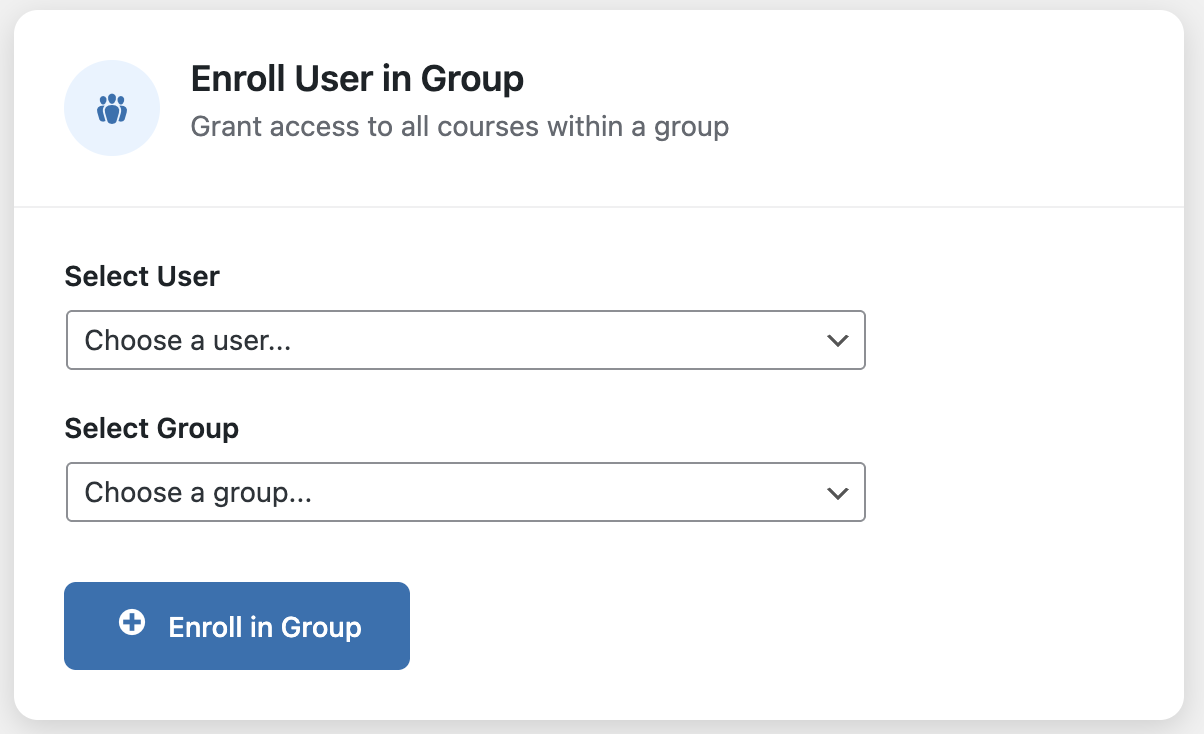
The user immediately gains access to all courses in the group. They will receive an email notification about their enrollment.
Unenrolling a User
To remove a user from a group:
- Find the user in the enrolled users list
- Click the Unenroll button next to their name
- Confirm the action
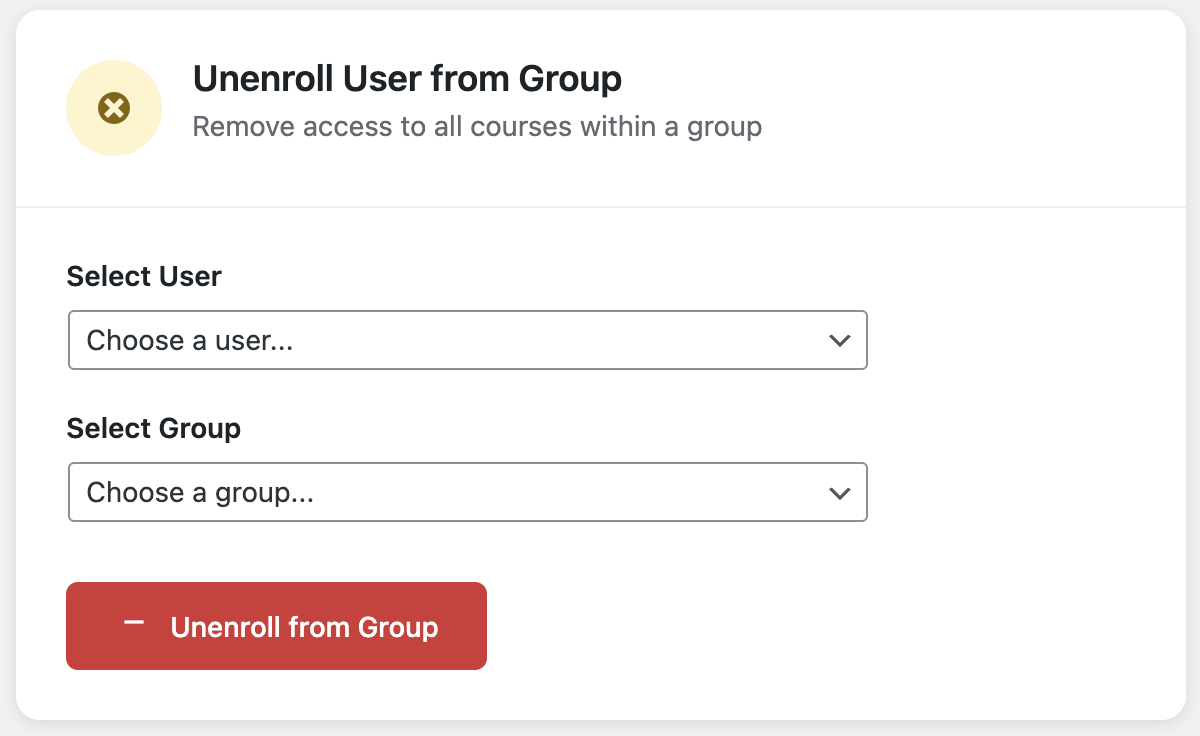
When unenrolling a user, the system checks if they have access to the courses through other means:
- If they have direct course access (purchased individually), that access is preserved
- If they're enrolled in another group containing the same course, that access is preserved
- Only course access granted specifically by this group is removed
Bulk Enrollment
To enroll multiple users at once:
- Select multiple users using the checkboxes
- Select the target group from the dropdown
- Click Bulk Enroll
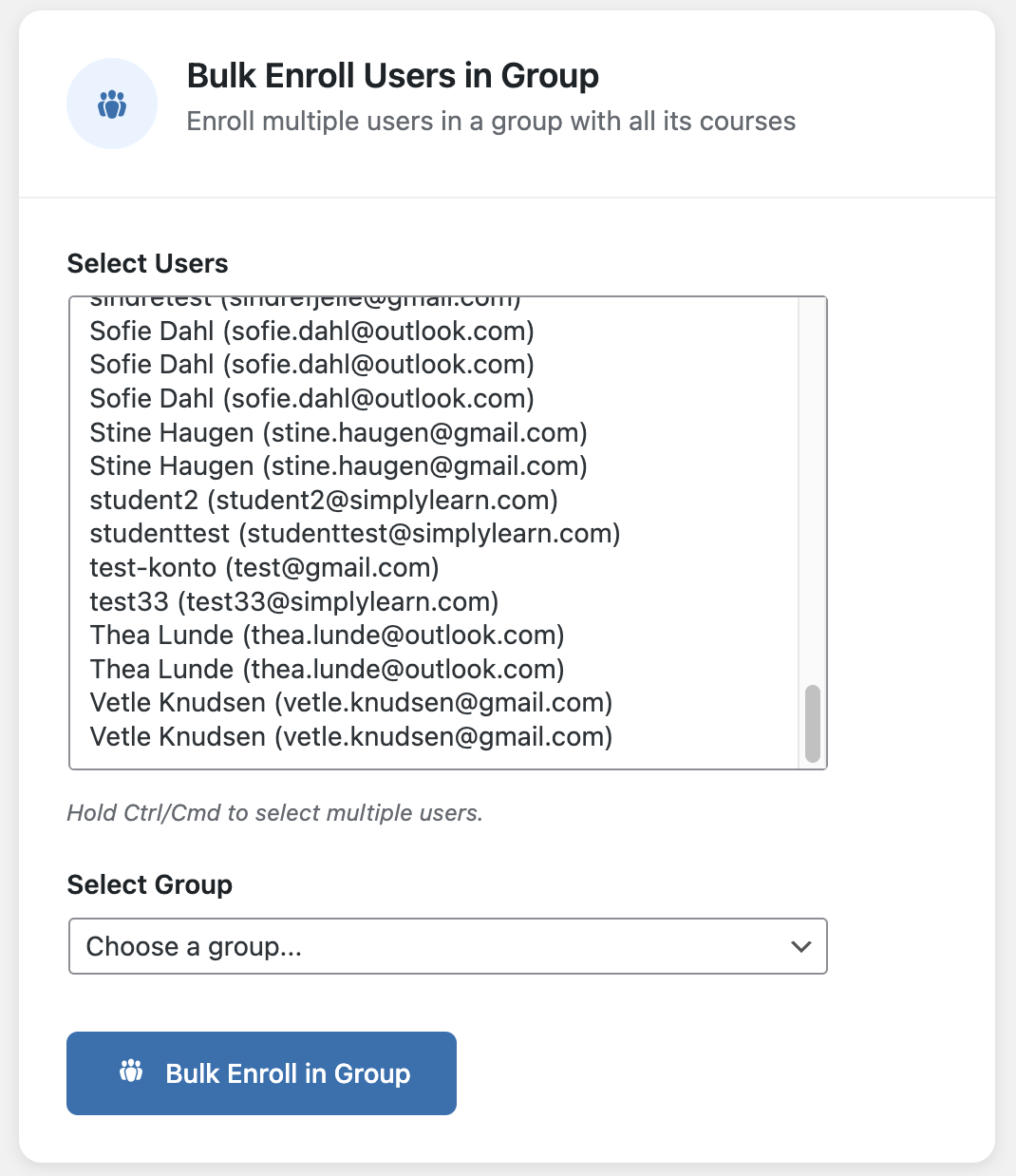
All selected users are enrolled simultaneously and receive enrollment notifications.
When to Use Manual Enrollment
Manual enrollment is useful for:
- Closed groups where self-enrollment is not allowed
- Corporate training where HR provides a list of employees
- Complimentary access when you want to give someone free access to a paid group
- Troubleshooting when automatic enrollment didn't work correctly
What's Next
- Groups Overview - Understanding group access types
- Group Settings - Configuring seat limits
- Paid Groups - Automatic enrollment via WooCommerce