Restrict Group Access by Email Domain
Limit group self-enrollment to users whose email matches an approved list of domains — ideal for organisations where every member has a company-issued address.
This feature is marked Beta in the admin UI. It is new and under active development. If you run into unexpected behaviour, email support@mentorkit.com.
You need the LMS Manager capability (or an administrator account) to edit group settings.
When to use it
Use the email domain allowlist when a group should only be joinable by people from one or more known organisations — for example:
- An internal onboarding group where only
@yourcompany.comaddresses should enrol. - A partner programme that accepts users from a handful of approved partner domains.
- A sector-wide training group where each participating organisation has its own work-email domain.
If the allowlist is empty (the default), any email can join the group.
Where to find it
From your WordPress dashboard, go to Mentorkit → Groups and open the group you want to restrict.
In the Group Settings meta box, scroll to the Email Domain Allowlist field (marked with a Beta badge).
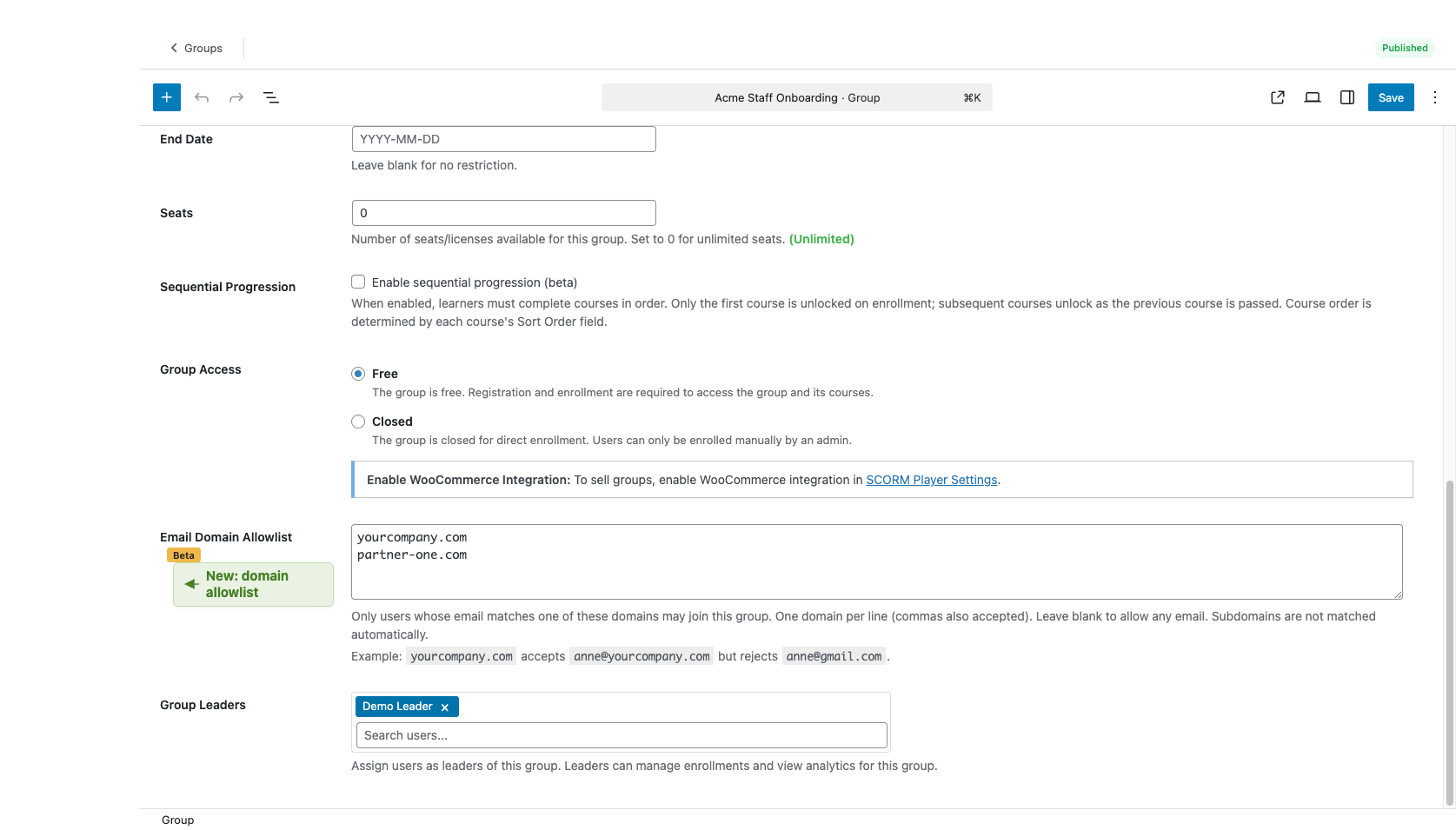
How to fill it in
Enter one domain per line, or separate multiple domains with commas. All of these are valid:
yourcompany.com
partner-one.com, partner-two.com
@acmecorp.com
Rules
| Rule | Behaviour |
|---|---|
| Empty list | Group is open to any email (default, no change to existing groups). |
| Whitespace / capitalisation | Ignored — YourCompany.COM and yourcompany.com are treated the same. |
Leading @ | Tolerated — @yourcompany.com and yourcompany.com behave identically. |
| Subdomains | Not matched automatically — sub.yourcompany.com does not satisfy yourcompany.com. Add subdomains explicitly if needed. |
| Multiple domains | Any match passes — a user on any listed domain can join. |
What users see when rejected
If a user tries to register into, or directly enrol in, a restricted group with an email that isn't on the list, they see a clear message listing the accepted domains:
This group only accepts users with an email from:
@yourcompany.com. Please use your work email, or contact your group administrator.
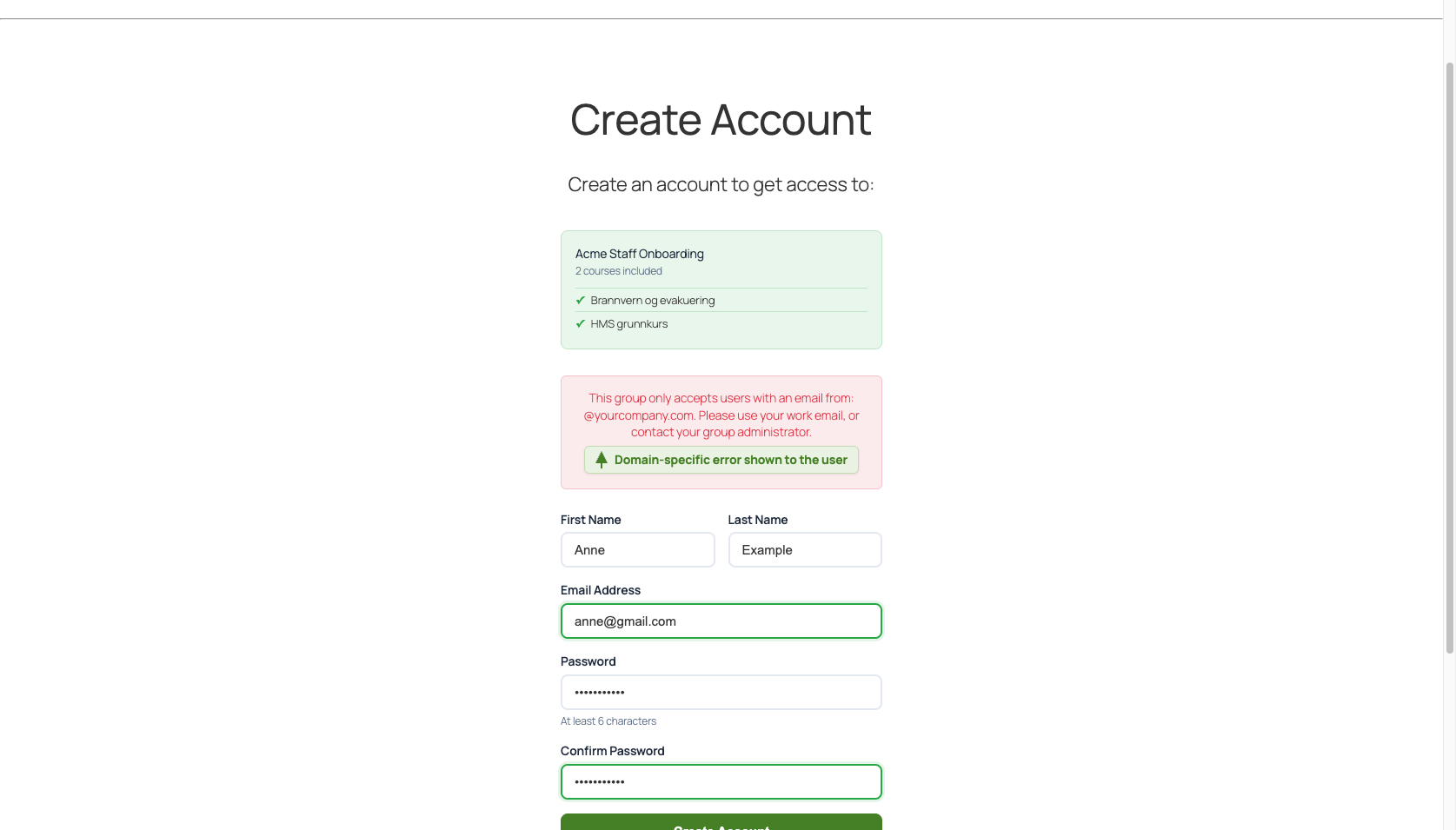
The account is not created, so they can retry with the right address. Rejections are written to the SCORM log (wp-content/uploads/scorm-player-debug.log) so you can track attempted sign-ups.
Where the check is enforced
The allowlist gates every way a user can enter the group:
- Self-registration via a group-linked registration page.
- Self-enrolment by an already-logged-in user on the group's public page.
- Invitations sent from Mentorkit → Invite User — an LMS Manager can't invite an out-of-domain address into the group.
- Group Leader actions — both "Add existing learner" and "Invite new learner" on the Group Leader dashboard respect the allowlist.
- Admin group-edit — assigning a new Group Leader via the group edit screen also respects the allowlist; the leader is kept in the list but not auto-enrolled if their email is out of domain.
If you need to grant a one-off exception (for example, a consultant), temporarily add their exact domain (or use a filter hook — see the plugin source for scorm_group_email_allowed).
Example
For a group called Acme Staff Onboarding, set the allowlist to:
yourcompany.com
Now:
- ✅
anne@yourcompany.comcan register and join. - ❌
anne@gmail.comis rejected on submit. - ❌
anne@sub.yourcompany.comis rejected (subdomains aren't auto-matched).
Rolling out safely
- Start with one pilot group to confirm the domain list is correct for your users.
- Watch the first few registrations — if legitimate users are blocked, adjust the list.
- Roll out to the remaining groups once you're confident.
Existing members are never removed when you add or change the allowlist — the check only applies to new enrolments.
What's Next
- Creating Groups — Set up a group from scratch.
- Managing Enrollments — Add and remove learners manually.
- Group Settings — Other per-group options (seats, access type, certificates).