Sequential Progression
This guide explains how to set up sequential course progression within a group, so learners must complete courses in a specific order.
You need an existing group with multiple courses. See Creating Groups if you haven't set one up yet.
Overview
When Sequential Progression is enabled on a group, learners can only access courses one at a time. The first course is unlocked immediately upon enrollment, and each subsequent course unlocks only after the previous one is passed. This is useful for training programs where courses build on each other.
Enable Sequential Progression
- Go to MentorKit → Groups and edit your group
- Scroll down to the Group Settings meta box
- Under Sequential Progression, check Enable sequential progression
- Click Update
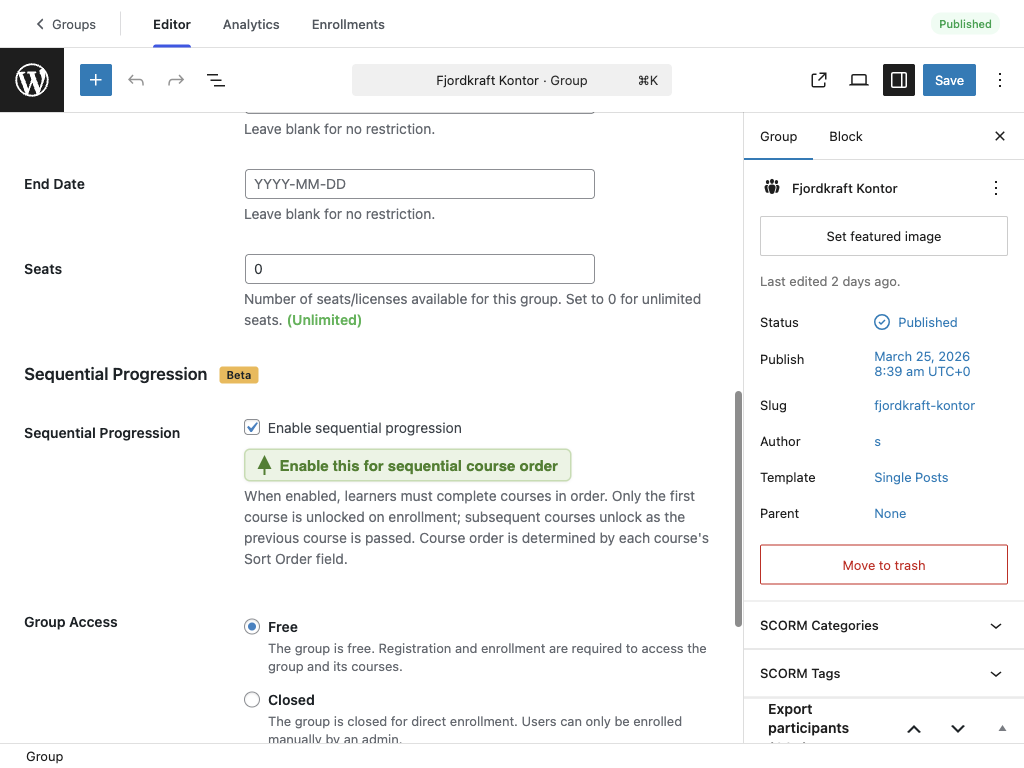
Sequential Progression is a Beta feature. If you encounter issues, contact support@mentorkit.com.
Set Course Order
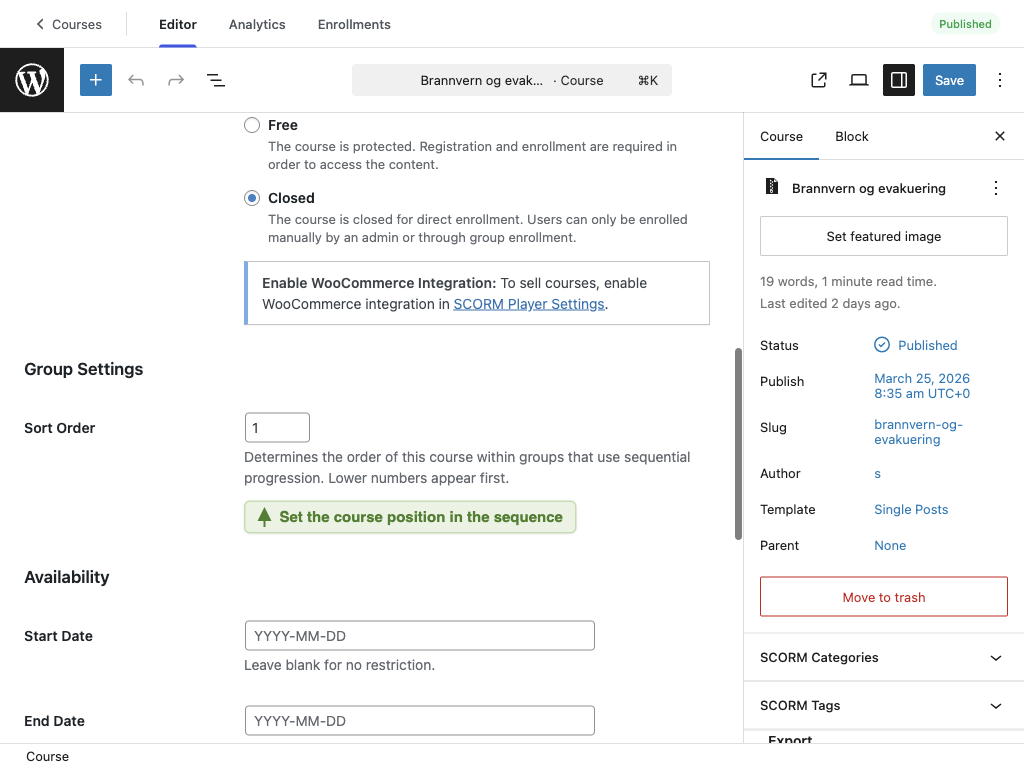
The order in which courses must be completed is determined by each course's Sort Order field.
- Go to MentorKit → Courses and edit a course
- In the Course Settings meta box, find the Sort Order field
- Enter a number — lower numbers come first (e.g. 1, 2, 3)
- Repeat for each course in the group
| Sort Order | Course | Status |
|---|---|---|
| 1 | Introduction to Safety | Unlocked first |
| 2 | Fire Safety Procedures | Unlocks after course 1 is passed |
| 3 | Emergency Response | Unlocks after course 2 is passed |
If two courses have the same sort order, they are sorted alphabetically by title.
What Learners See
Group Page
On the group page, each course shows a status badge:
| Badge | Meaning |
|---|---|
| Not Started | Course is unlocked but not yet started |
| In Progress | Learner has started the course |
| Passed | Course is completed |
| Locked | Course is not yet available — previous course must be passed first |
Locked Course Page
If a learner navigates directly to a locked course, they see a notice:
This course is locked. Complete [Previous Course] first to unlock it.
The notice includes a link to the previous course they need to complete. If they try to access the SCORM player for a locked course, they are redirected back to the course details page.
My Profile Page
On the learner's My Profile page, locked courses within a group appear with a lock indicator, showing which courses are available and which are still locked.
How Unlocking Works
- When a learner is enrolled in a sequential group, only the first course (lowest sort order) is granted access
- The learner completes the first course and receives a Passed status
- The next course in the sequence is automatically unlocked
- This repeats until all courses are completed
Course access is granted automatically — there's no manual step needed to unlock the next course. As soon as the SCORM package reports a "passed" status, the next course becomes available.
What's Next
- Group Settings — configure access type, seat limits, and availability dates
- Group Certificates — issue certificates when all courses in a group are completed